Add credits, release details and audio to a track
Fill in what curators, stations and distributors ask for (credits, genre, mood, CanCon, release date, label, ISRC), upload your audio to get its tempo, key and loudness measured, and download a file with everything built in.
On this page
Why it matters
Stations, curators and blogs need the details right before they can play or feature a song. Everything here shows on your Track Page, goes with every submission, and is written into the files you download. Open the track's editor from My Tracks (the pencil) or with Edit track page on the page itself.
1. Story, lyrics and credits
Open Story & lyrics
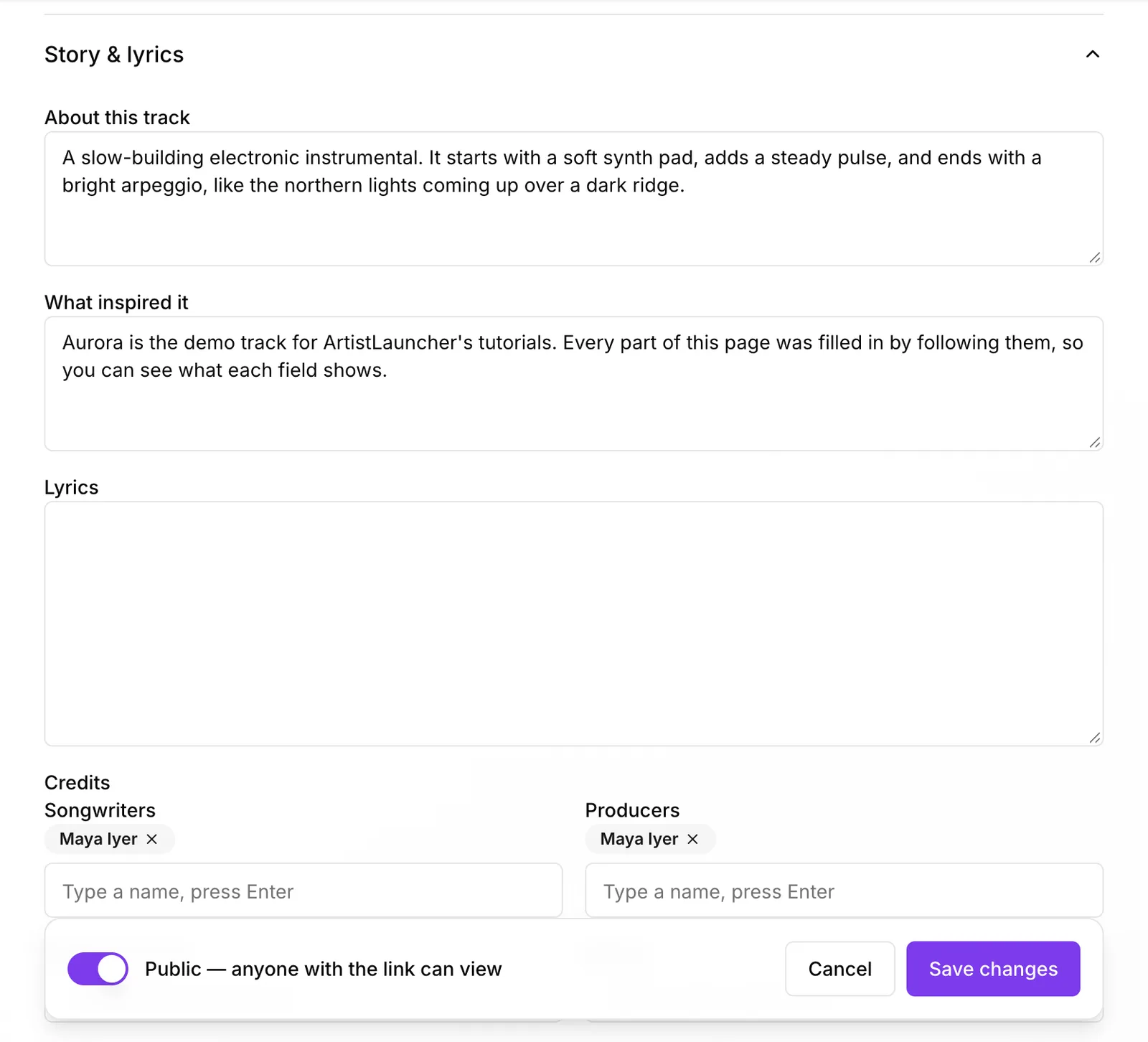
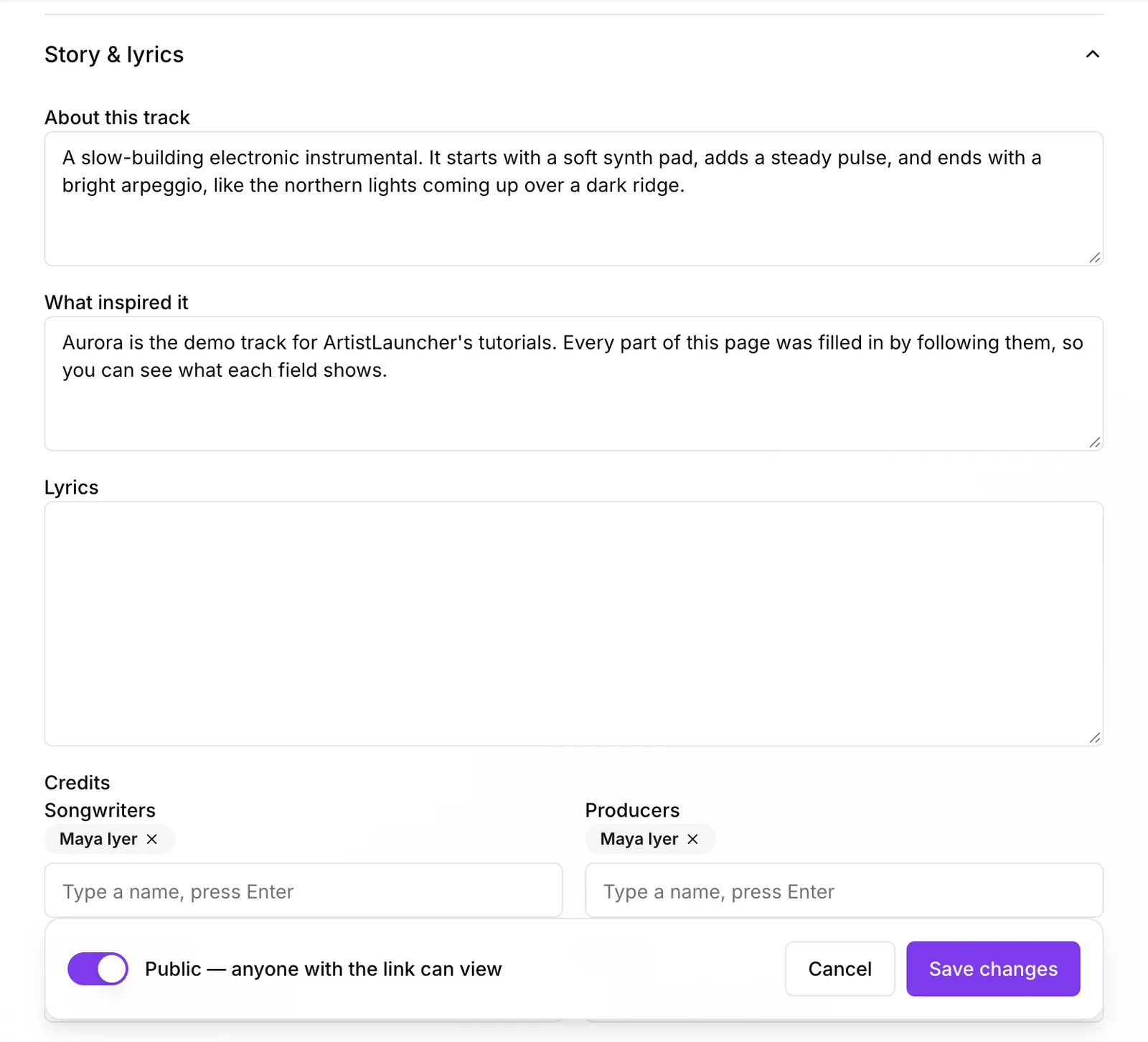
About this track and What inspired it show on the page as About this track and The story behind it. Paste the Lyrics if the song has them.
 (opens the full-size screenshot)
Add the Credits
Type a name under Songwriters, Producers, Featured artists, Mixing or Mastering and press Enter. Add as many people as you need.
2. Genre, mood and instruments
Open Genre, mood & instruments
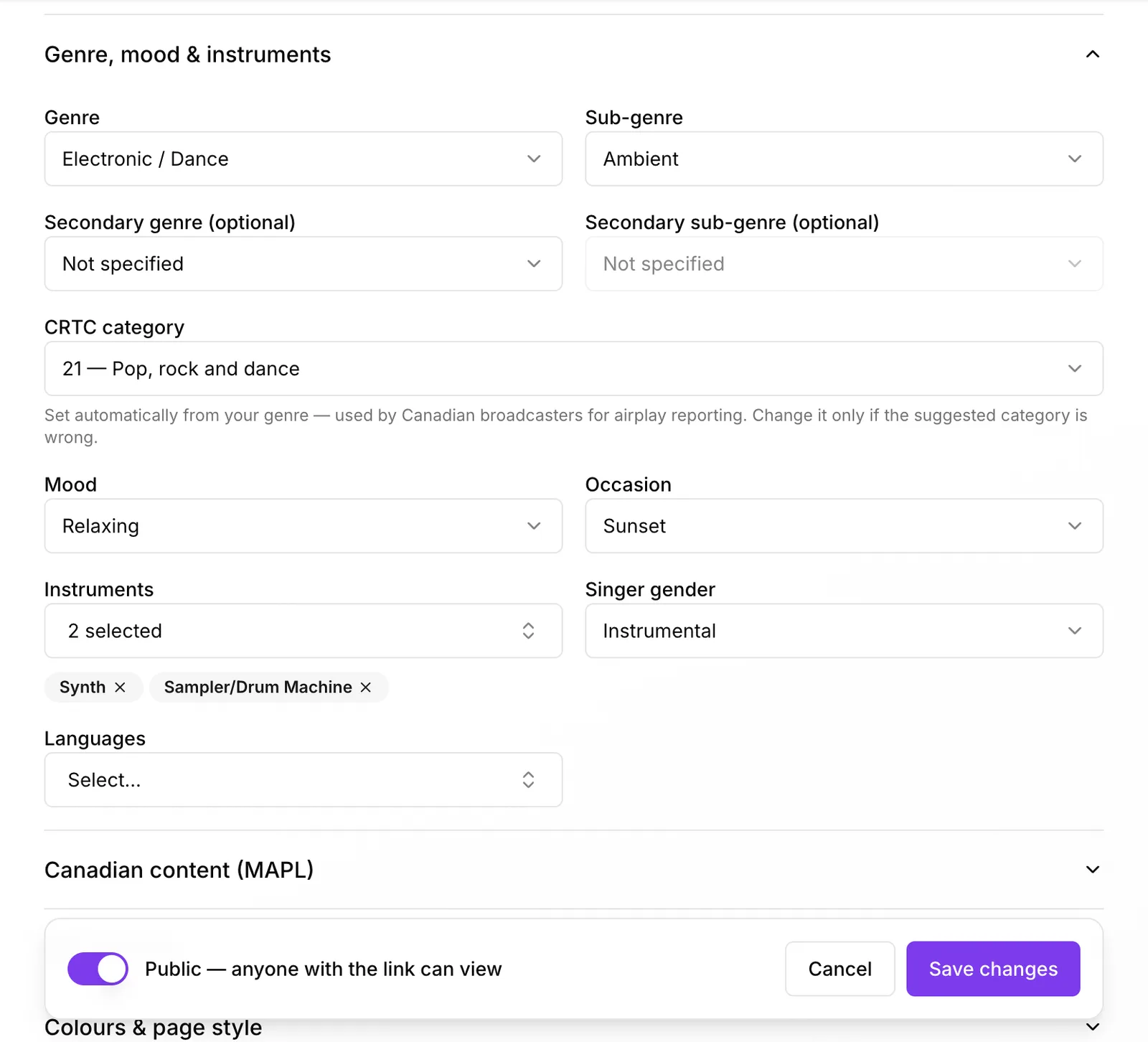
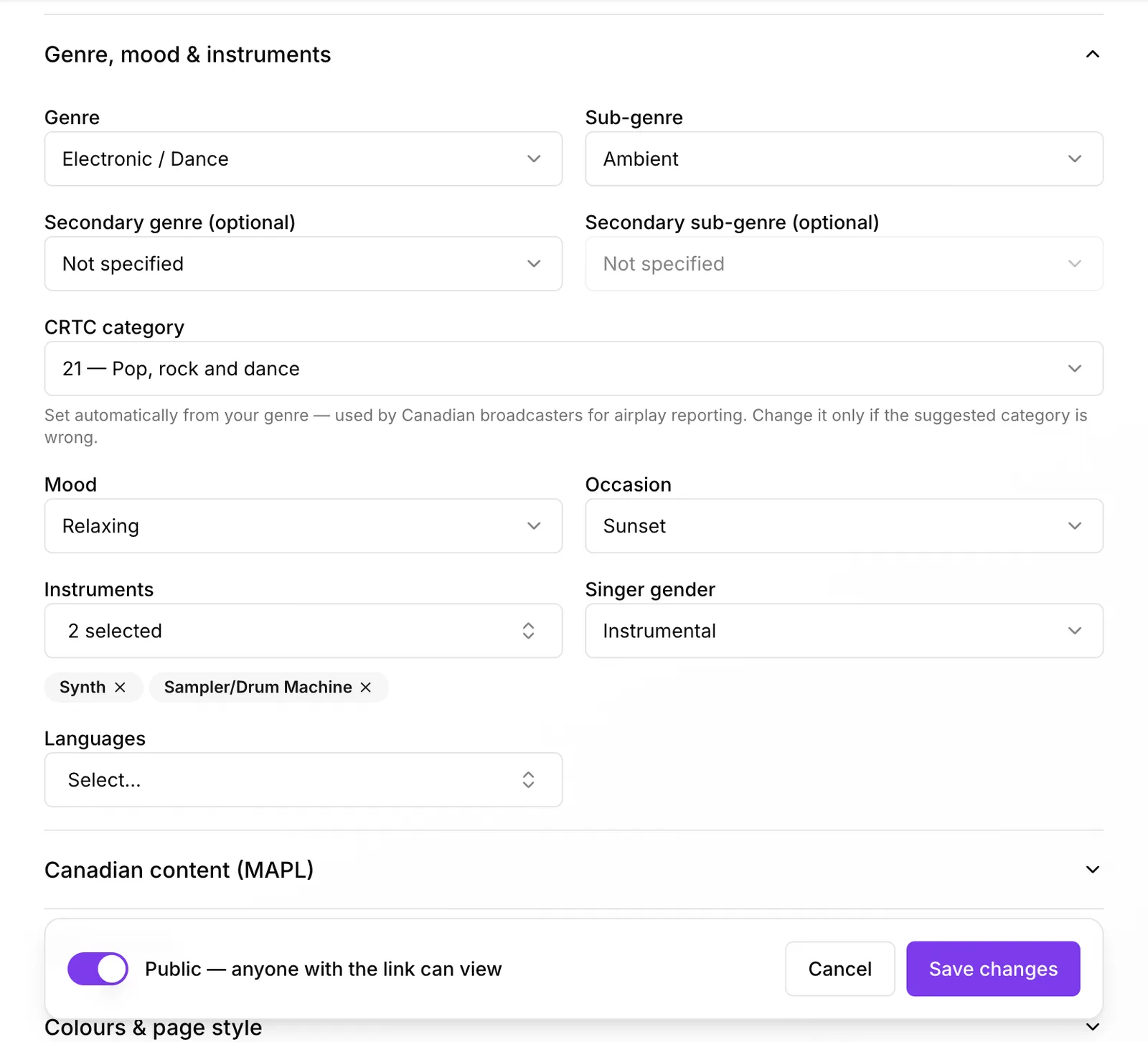
Pick a Genre and Sub-genre (plus a secondary one if it crosses over), a Mood and an Occasion, the Instruments, Singer gender and Languages.
 (opens the full-size screenshot)
Check the CRTC category
It's set from your genre for Canadian airplay reporting. Change it only if it's wrong.
3. Canadian content (MAPL)
Open Canadian content (MAPL) and tick what's true
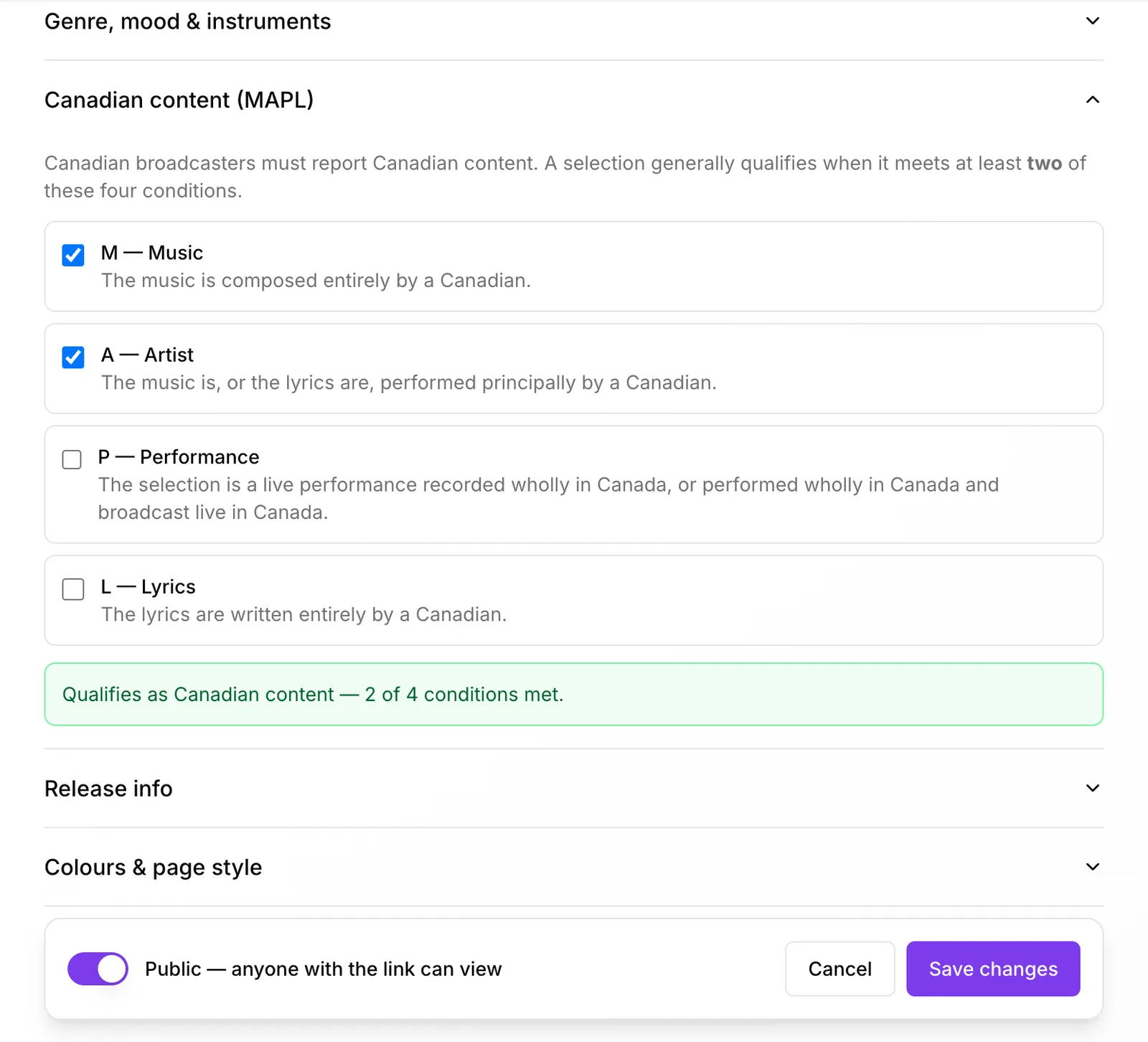
Music composed by a Canadian, Artist performing is Canadian, Performance recorded or broadcast live in Canada, Lyrics written by a Canadian. Two of the four generally qualifies, and the box tells you when it does.
 (opens the full-size screenshot)
4. Release info
Open Release info
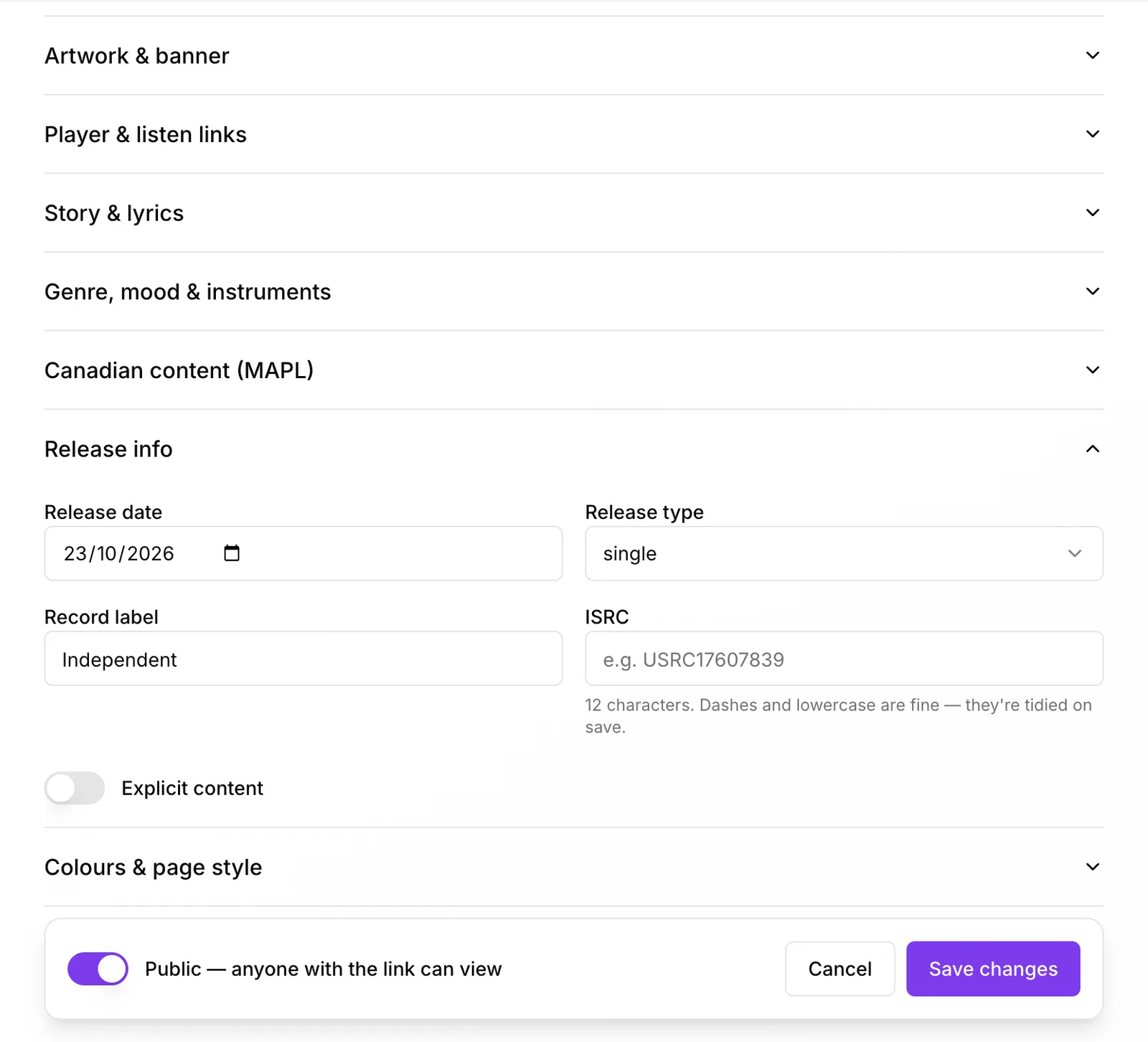
Add the Release date, the Release type (single, EP or album), the Record label (or Independent) and the ISRC if you have one. Turn on Explicit content if it applies.
 (opens the full-size screenshot)
Click Save changes
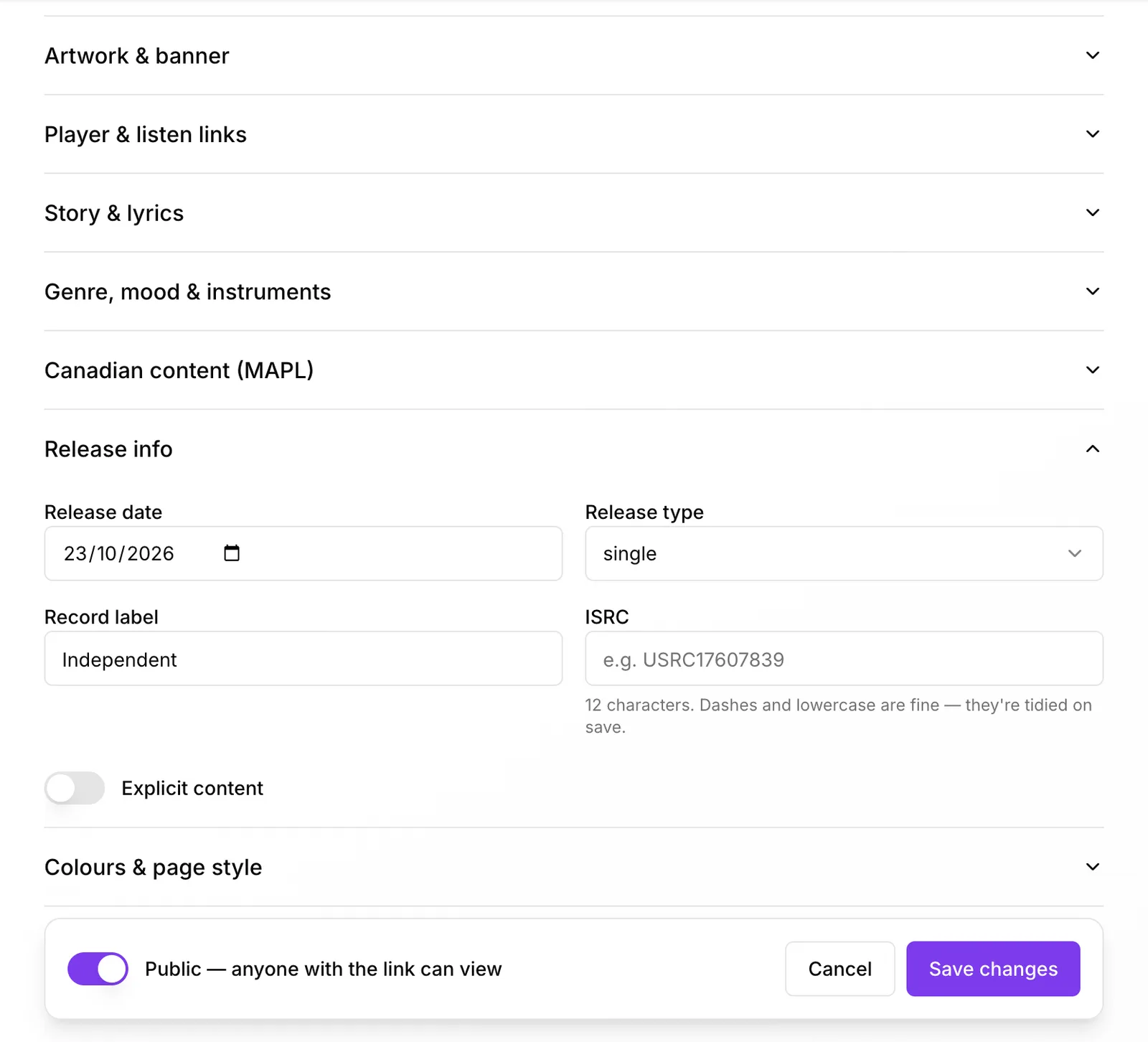
- The ISRC is the 12-character code your distributor gives each recording. Dashes and lowercase are fine: they're tidied up when you save.
5. Upload your audio
Open Audio file and click Upload an audio file
MP3, WAV, FLAC, M4A, OGG and more, up to 250 MB.
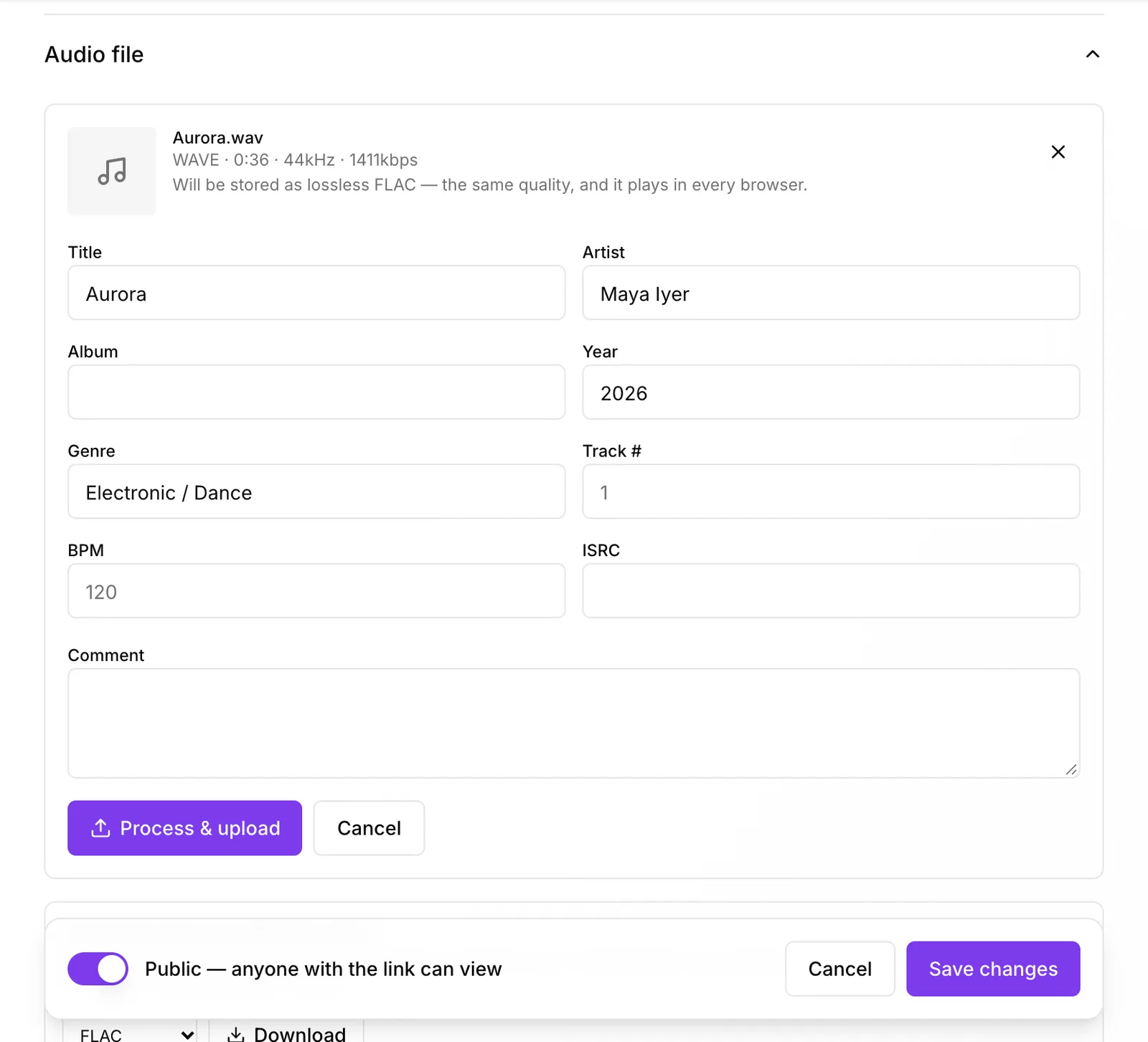
Check the tags, then click Process & upload
Wherever the file has no tag of its own, the title, artist, year, genre and ISRC are filled in from your Track Page. Add anything missing (album, track number, BPM). WAV, AIFF and ALAC are stored as lossless FLAC (the same quality, and it plays in every browser). MP3s stay MP3 with your tags written in.
 (opens the full-size screenshot)
- Your audio is private. Only you and the curators or stations you submit to can play it.
6. What's measured for you
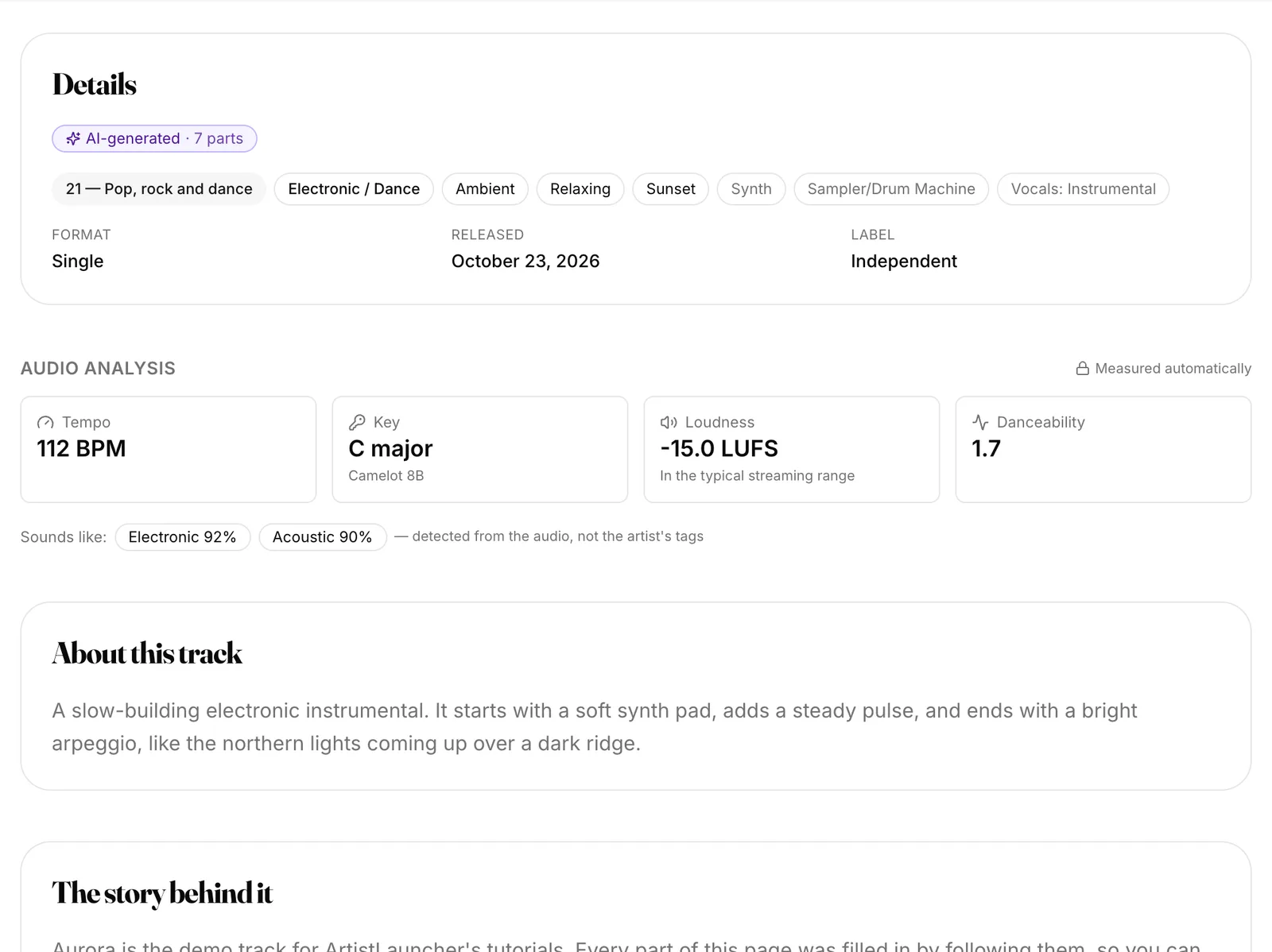
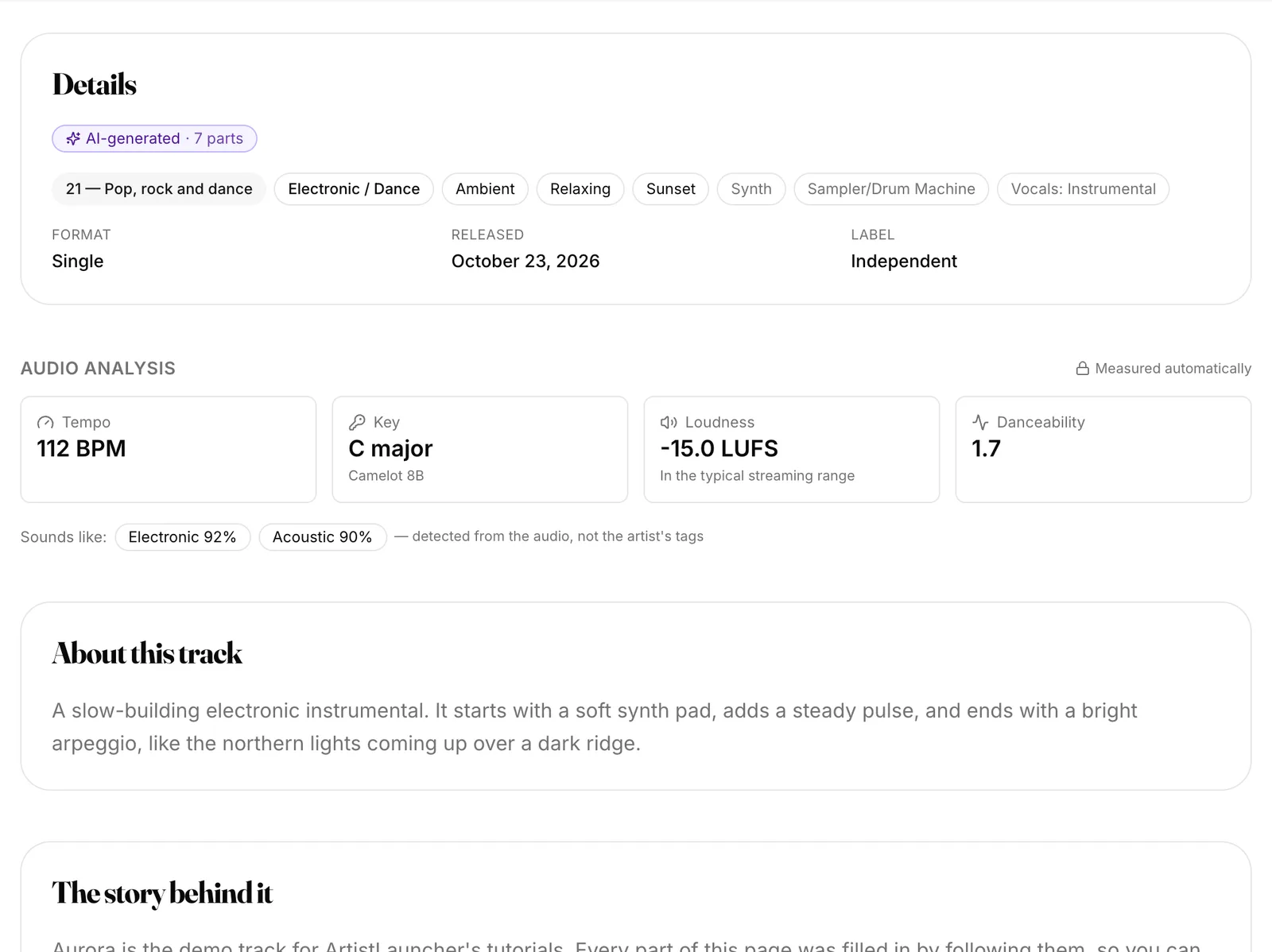
Open your Track Page and scroll to Details and Audio analysis
Measured from the file itself: Tempo, Key (with its Camelot code for DJs), Loudness in LUFS and whether it's in the typical streaming range, Danceability, and Sounds like:, the styles detected from the audio rather than your tags.
 (opens the full-size screenshot)
7. Download a file with everything built in
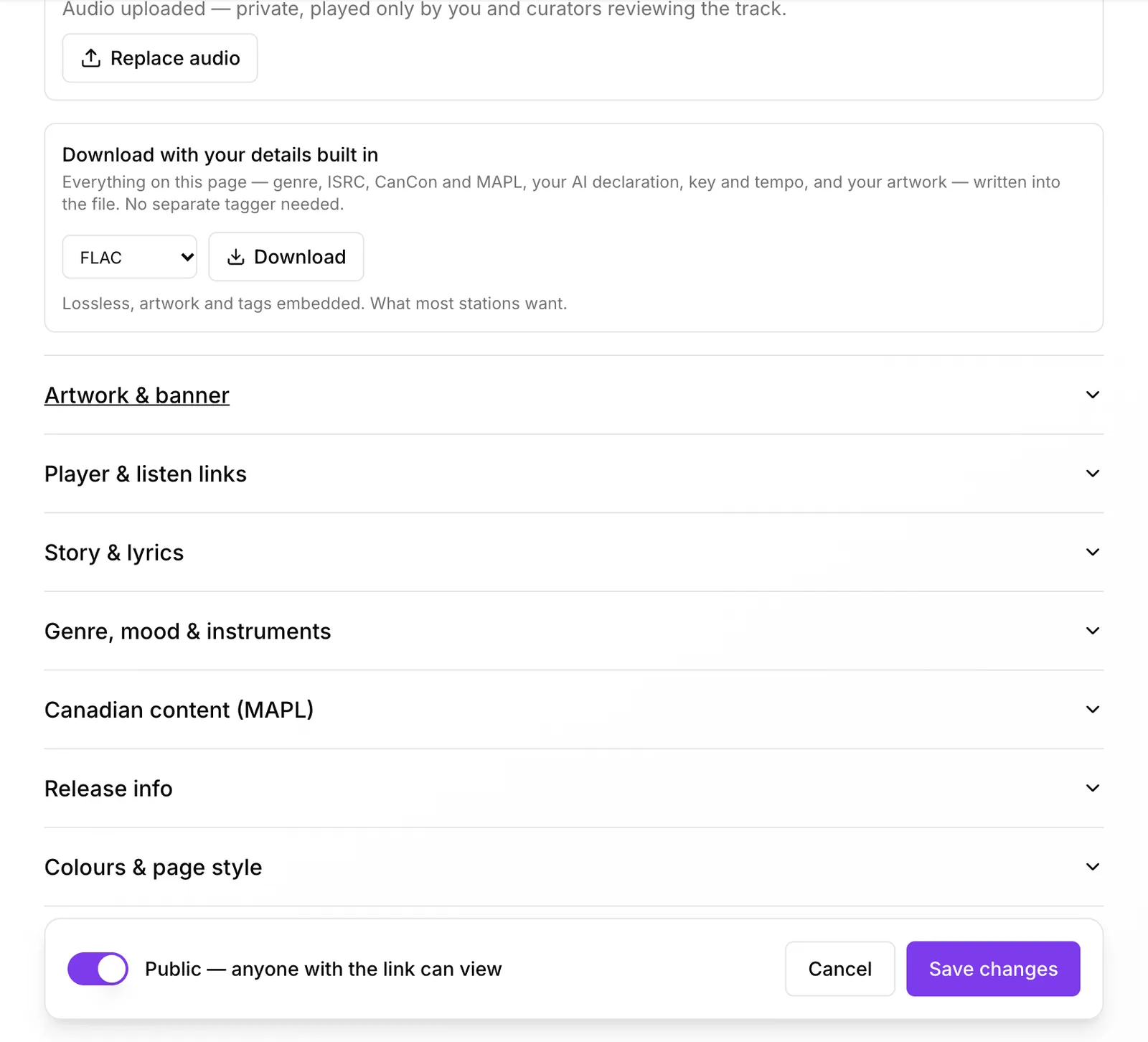
In Audio file, find Download with your details built in
Choose FLAC (lossless, what most stations want), WAV, MP3, M4A or AAC and click Download. The file carries your genre, ISRC, CanCon and MAPL, your AI declaration, key and tempo, and your artwork. No separate tagger needed.
 (opens the full-size screenshot)
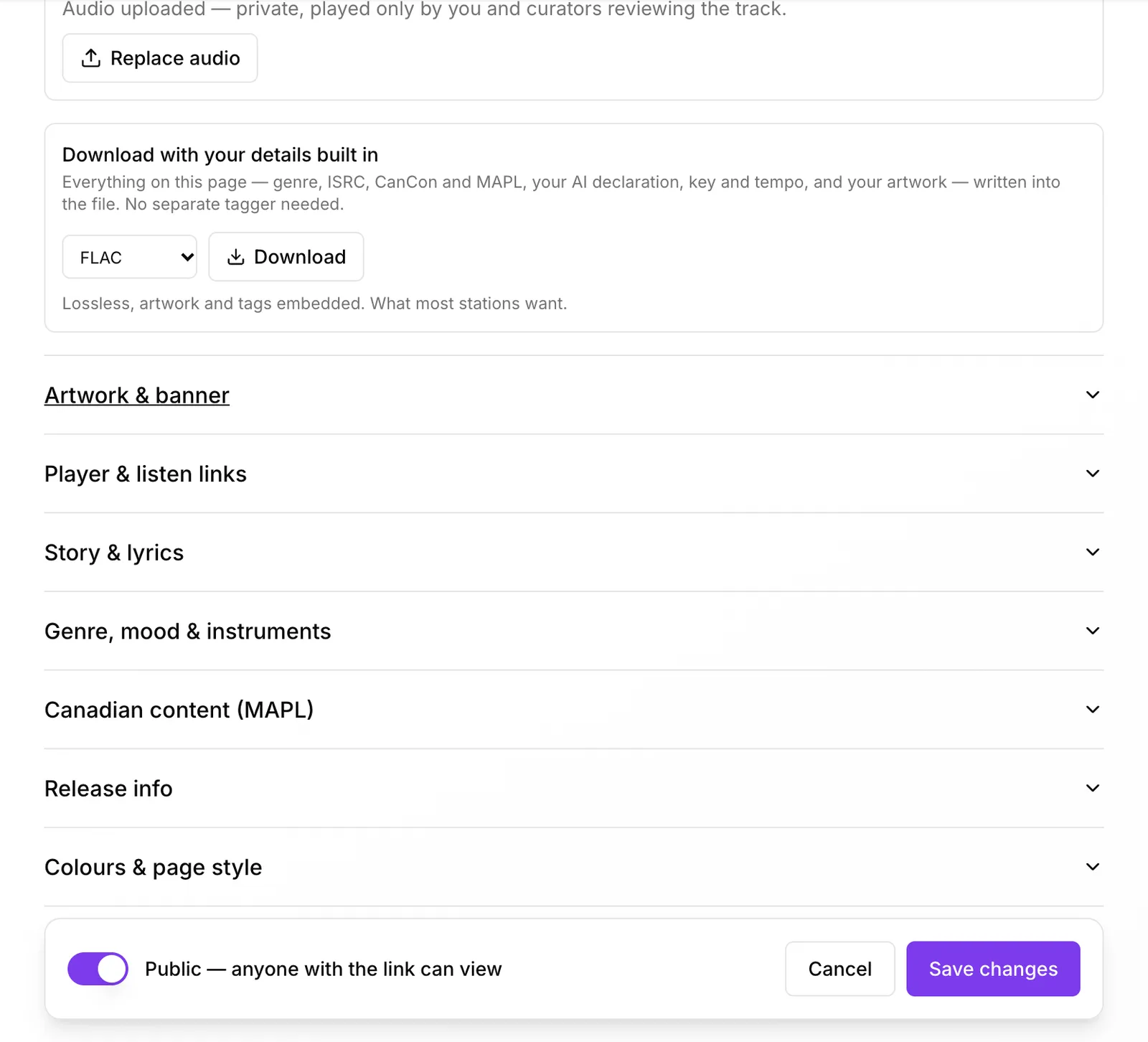
- WAV files can't hold artwork, so pick FLAC when you want the cover inside the file.
How it looks on your page
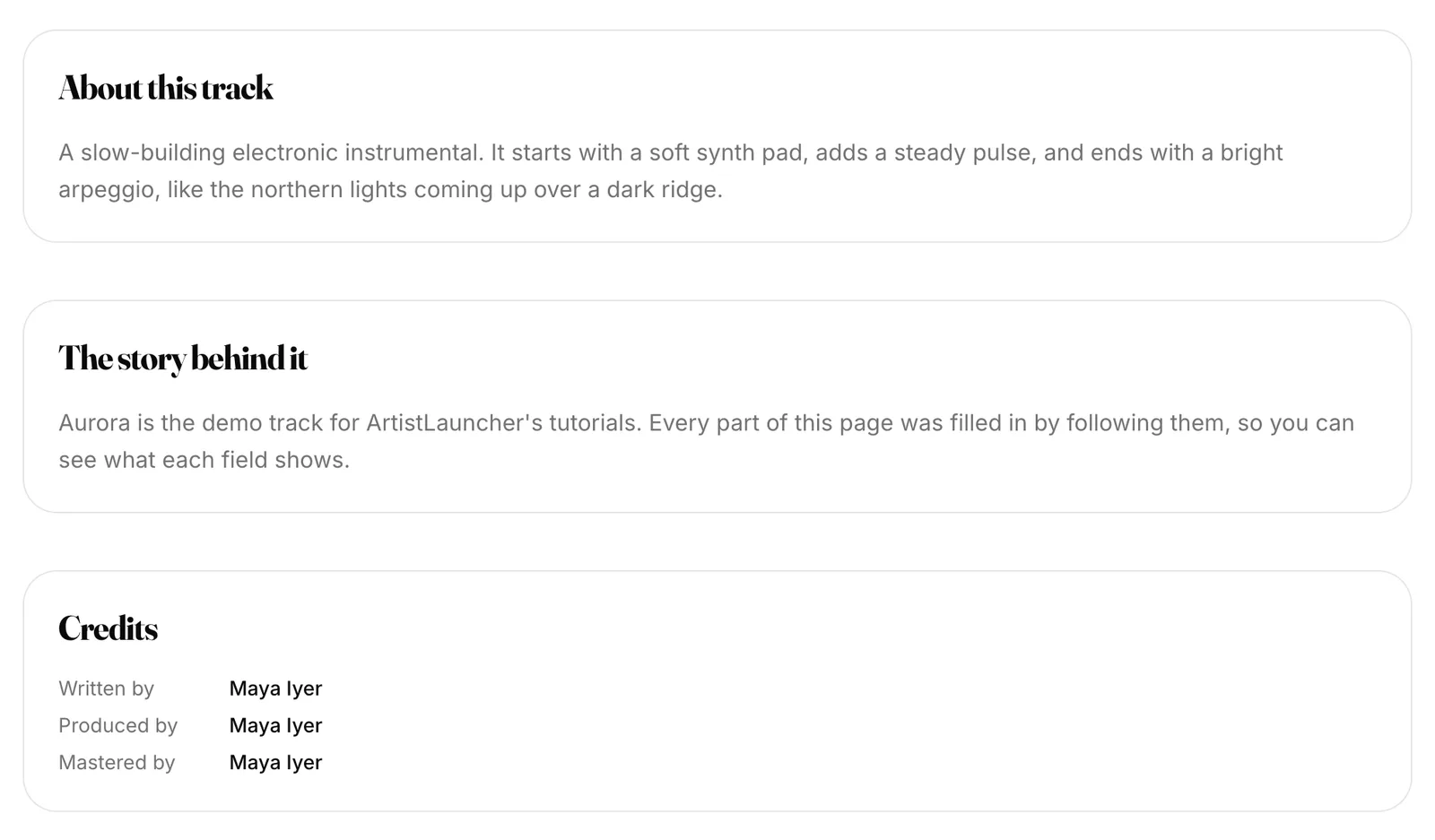
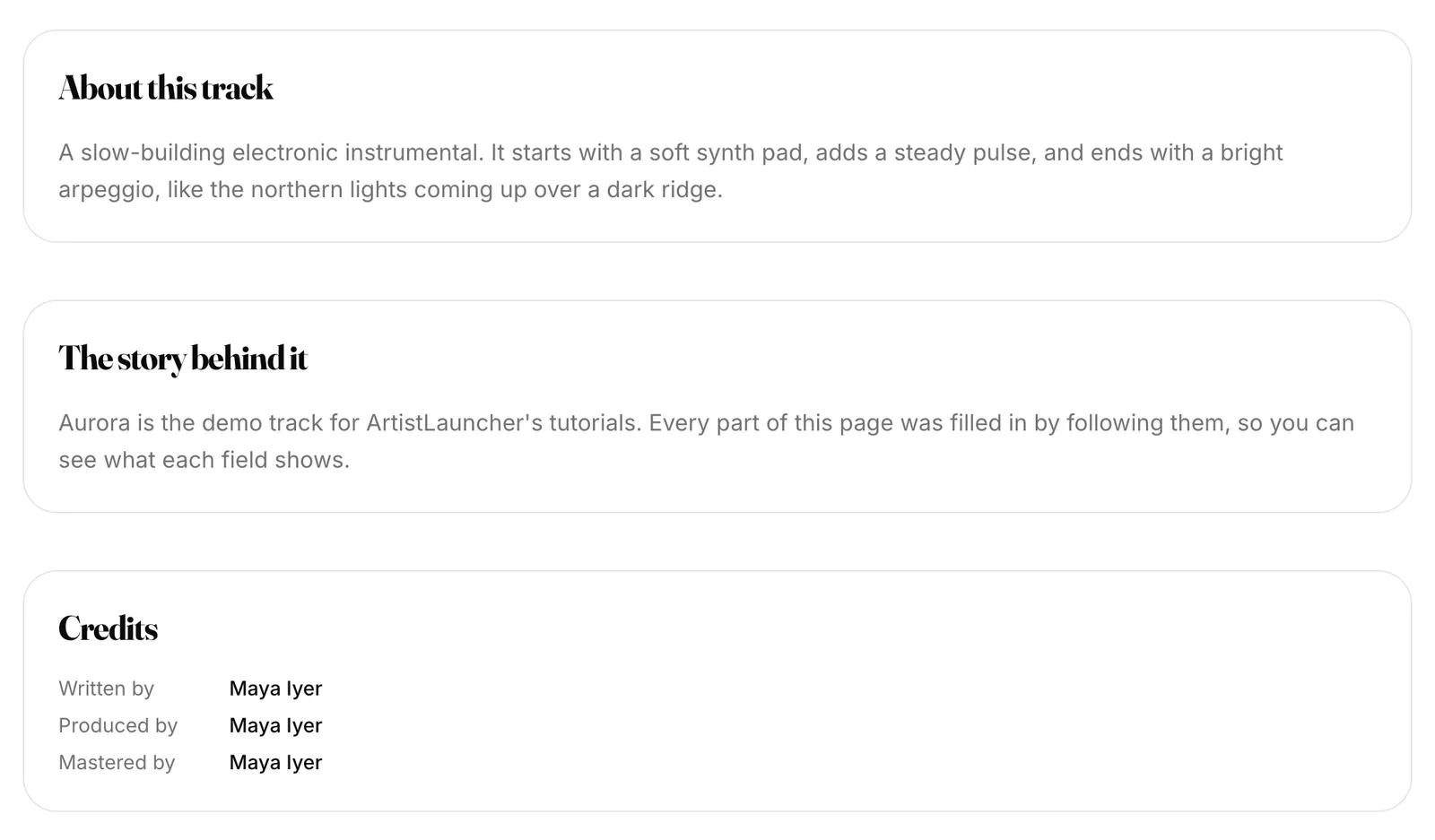
Your story and credits show under the details
About this track, The story behind it, Lyrics and Credits, for everyone who opens the link.
 (opens the full-size screenshot)