Put out an EP or album
Group your songs into one record with its own page, a pre-save countdown, one zip of every track for stations and buyers, and one submission or pitch for the whole thing. Free.
On this page
What a release gives you
- A page for the whole record at artistlauncher.com/r/your-release: cover, banner, tracklist, a player, listen links, liner notes and credits.
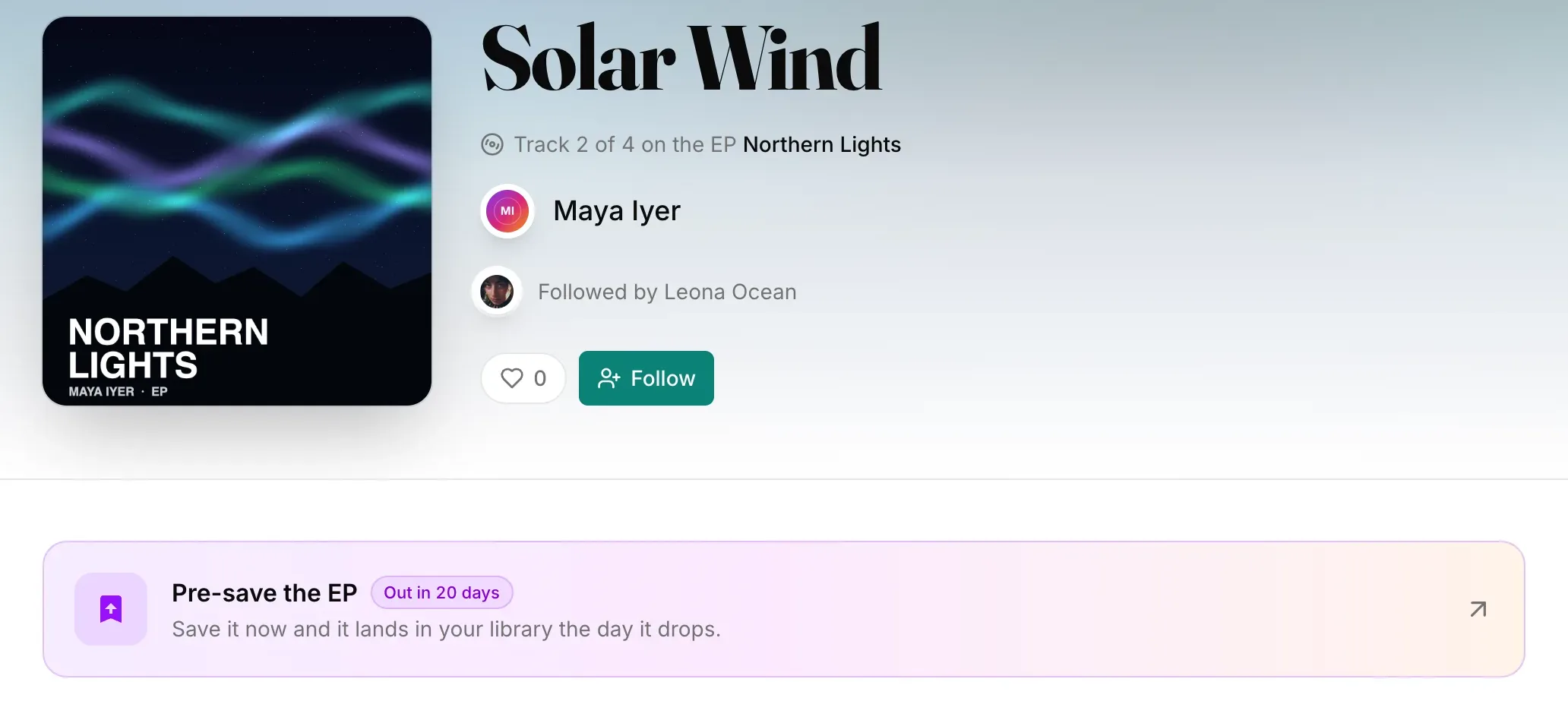
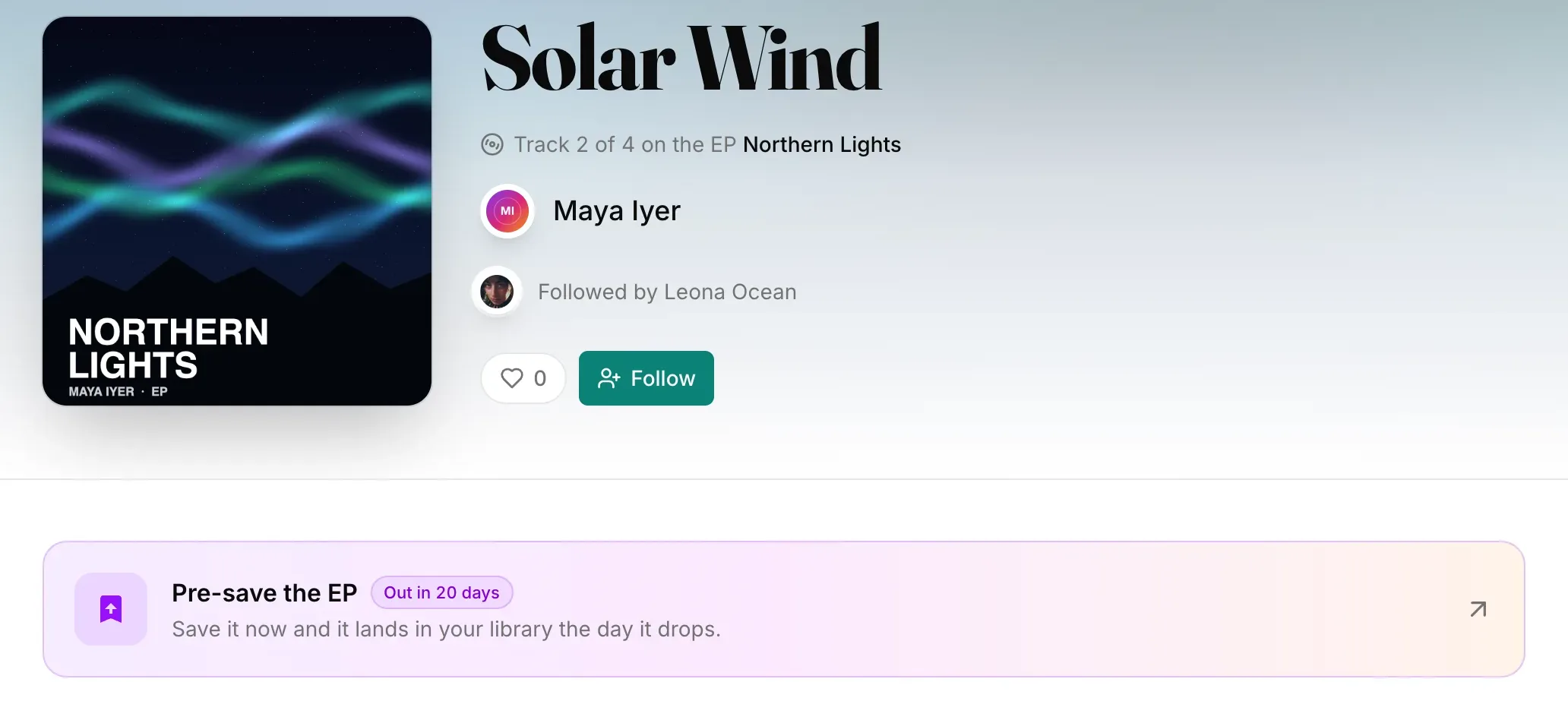
- Every song keeps its own Track Page, which says where it sits: "Track 2 of 4 on the EP Northern Lights".
- A Pre-save countdown on the release page and on every song's page until release day.
- One zip of every track, with your details and artwork built in, for you, for stations you send it to and for people who buy it.
- One submission to a station's inbox, one email pitch and one store product for the whole record.
1. Create the release
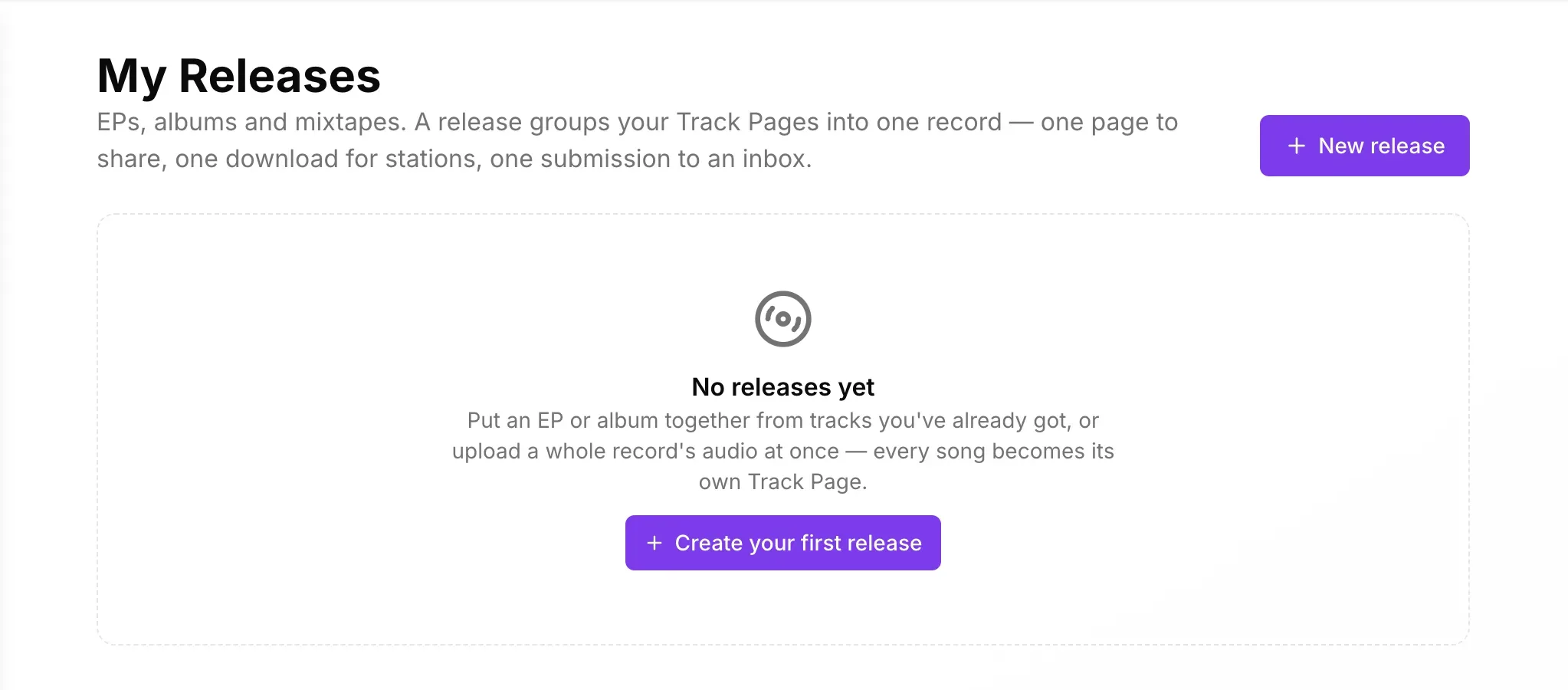
Click My Releases in the sidebar, then New release
It sits under My Tracks. The first time, the button reads Create your first release.
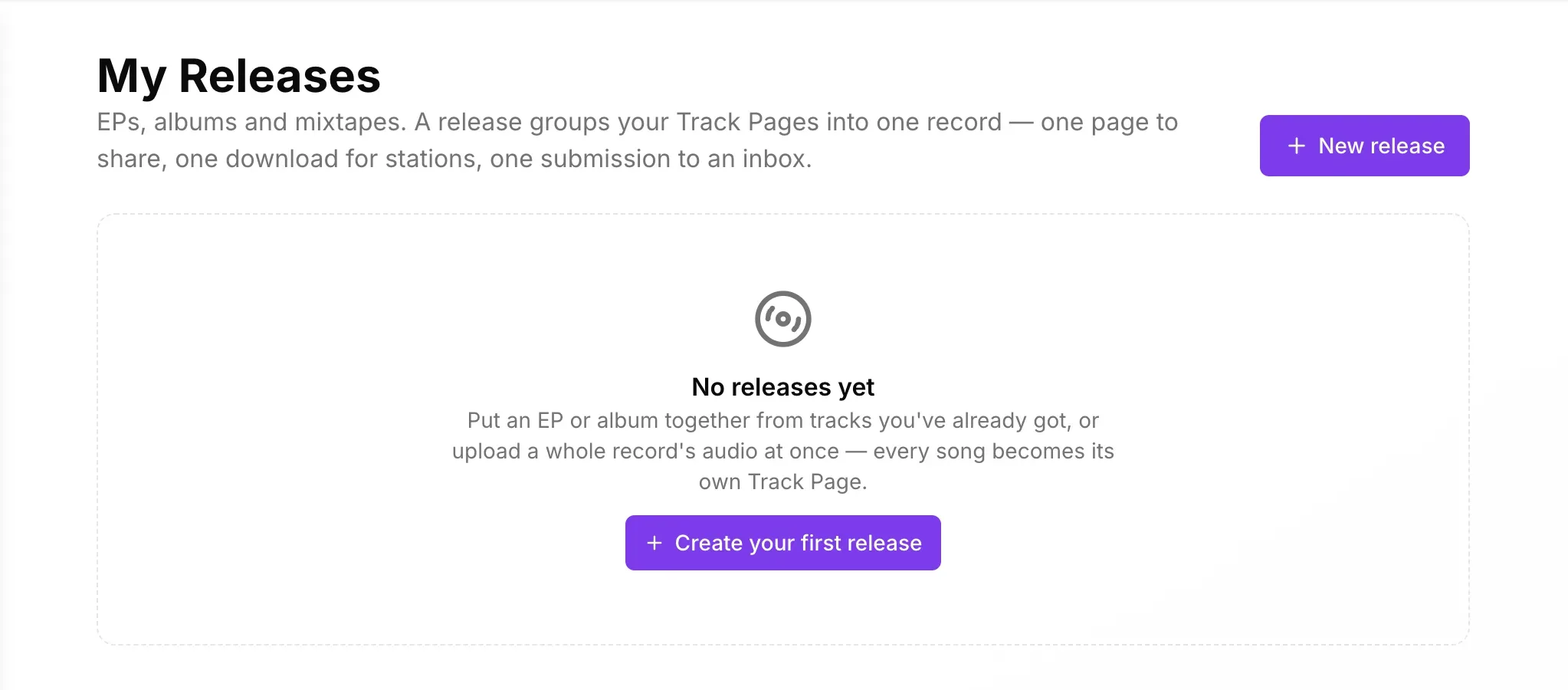 (opens the full-size screenshot)
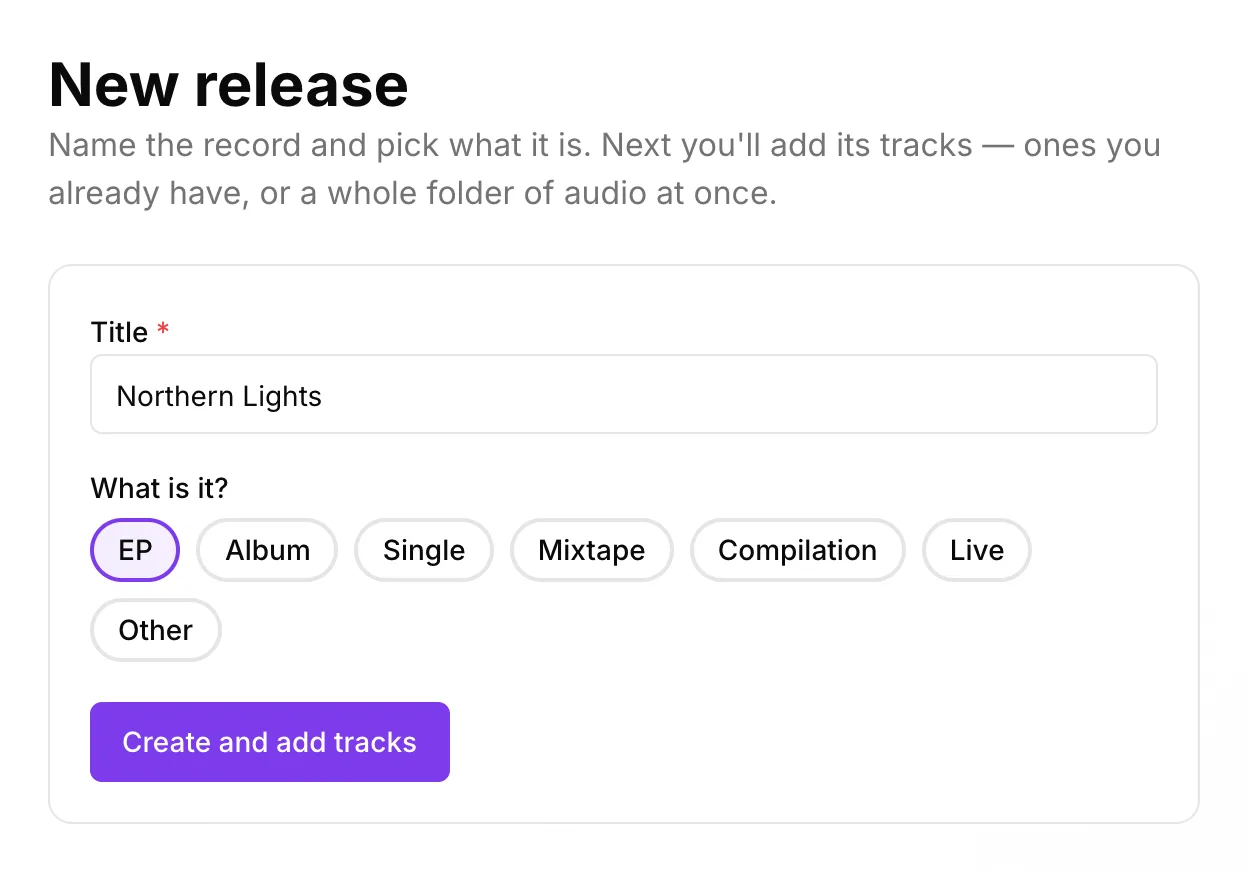
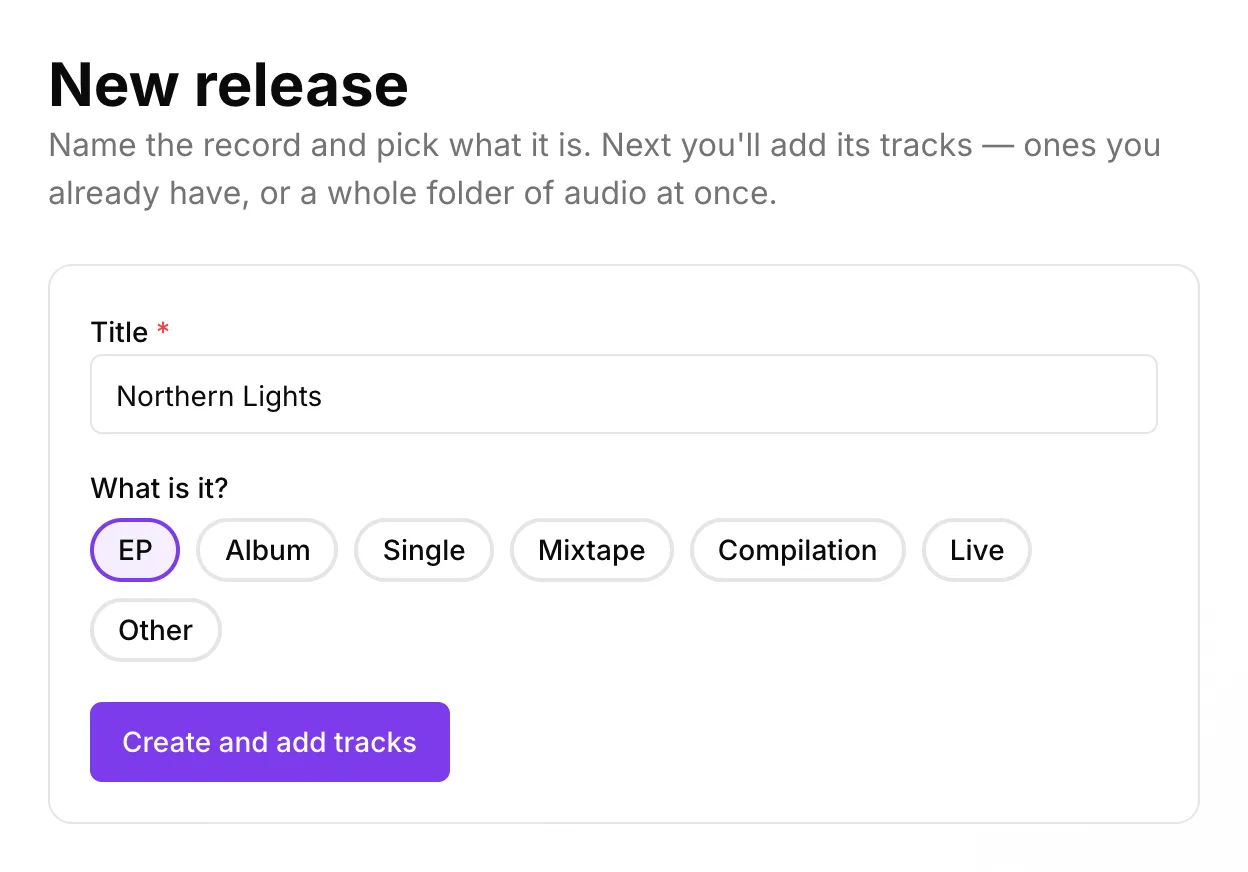
Type the Title, pick what it is and click Create and add tracks
EP, Album, Single, Mixtape, Compilation, Live or Other. The editor opens on the new release, as a draft only you can see.
 (opens the full-size screenshot)
2. Add the tracks
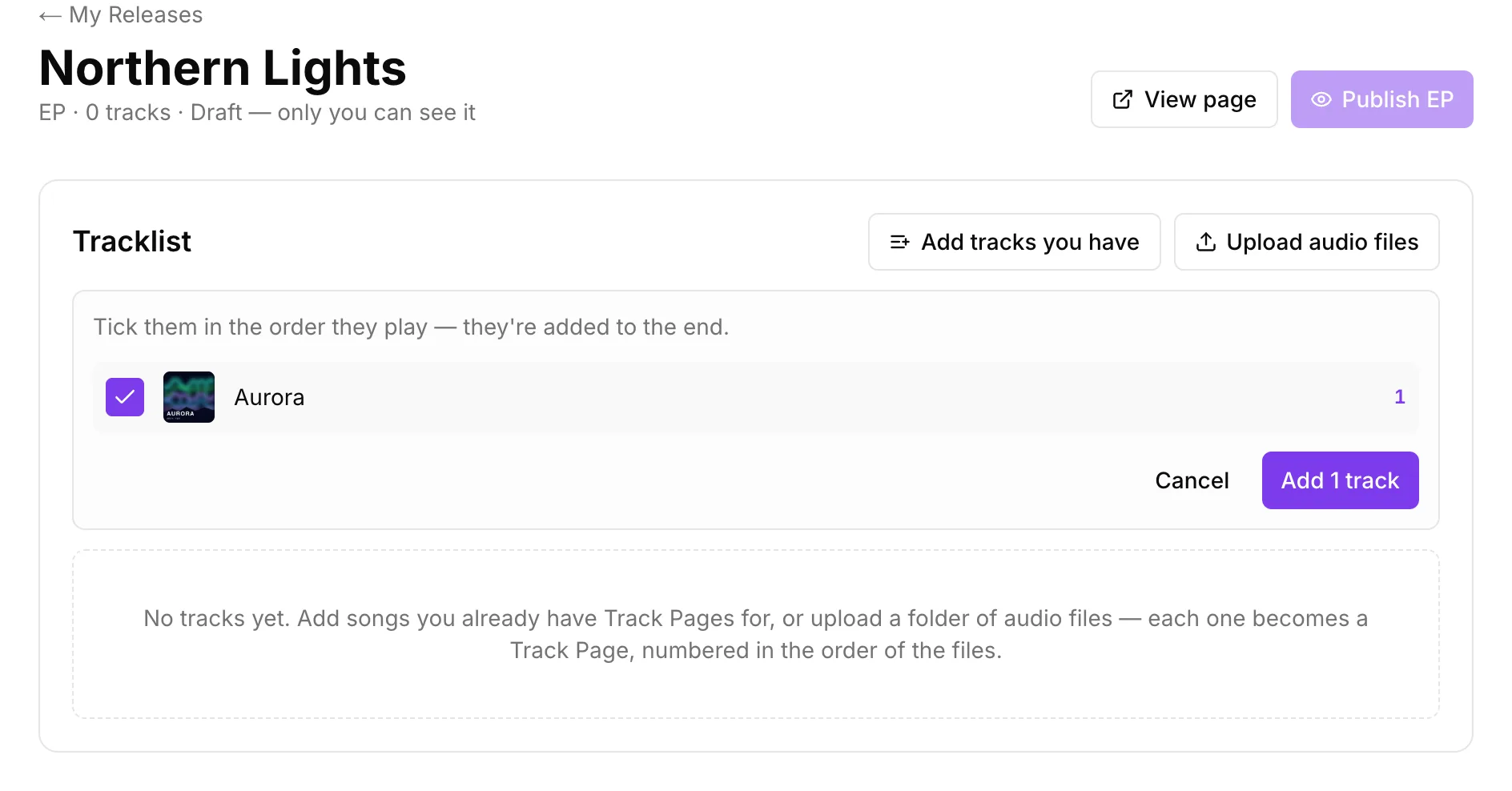
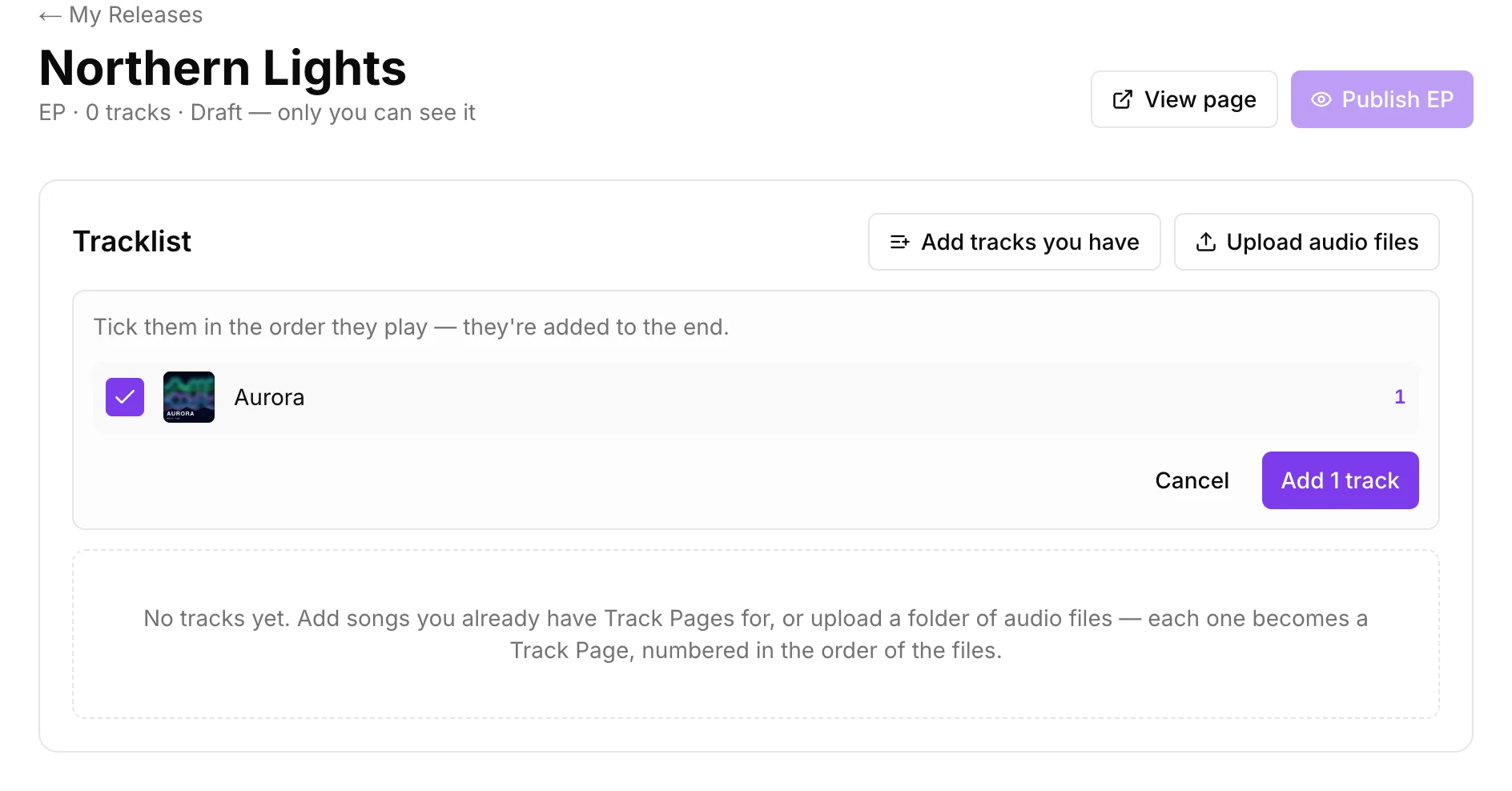
Songs you already have: click Add tracks you have
Tick them in the order they play, then click Add 1 track (or however many you ticked). They're added to the end of the tracklist.
 (opens the full-size screenshot)
New songs: click Upload audio files and pick them all at once
Every file becomes its own Track Page, named from the file's tags or its name ("02 Solar Wind.wav" becomes "Solar Wind") and placed in track-number order. They upload one after another, so keep the tab open until they're done. MP3, WAV, FLAC, M4A, AIFF and OGG all work.
 (opens the full-size screenshot)
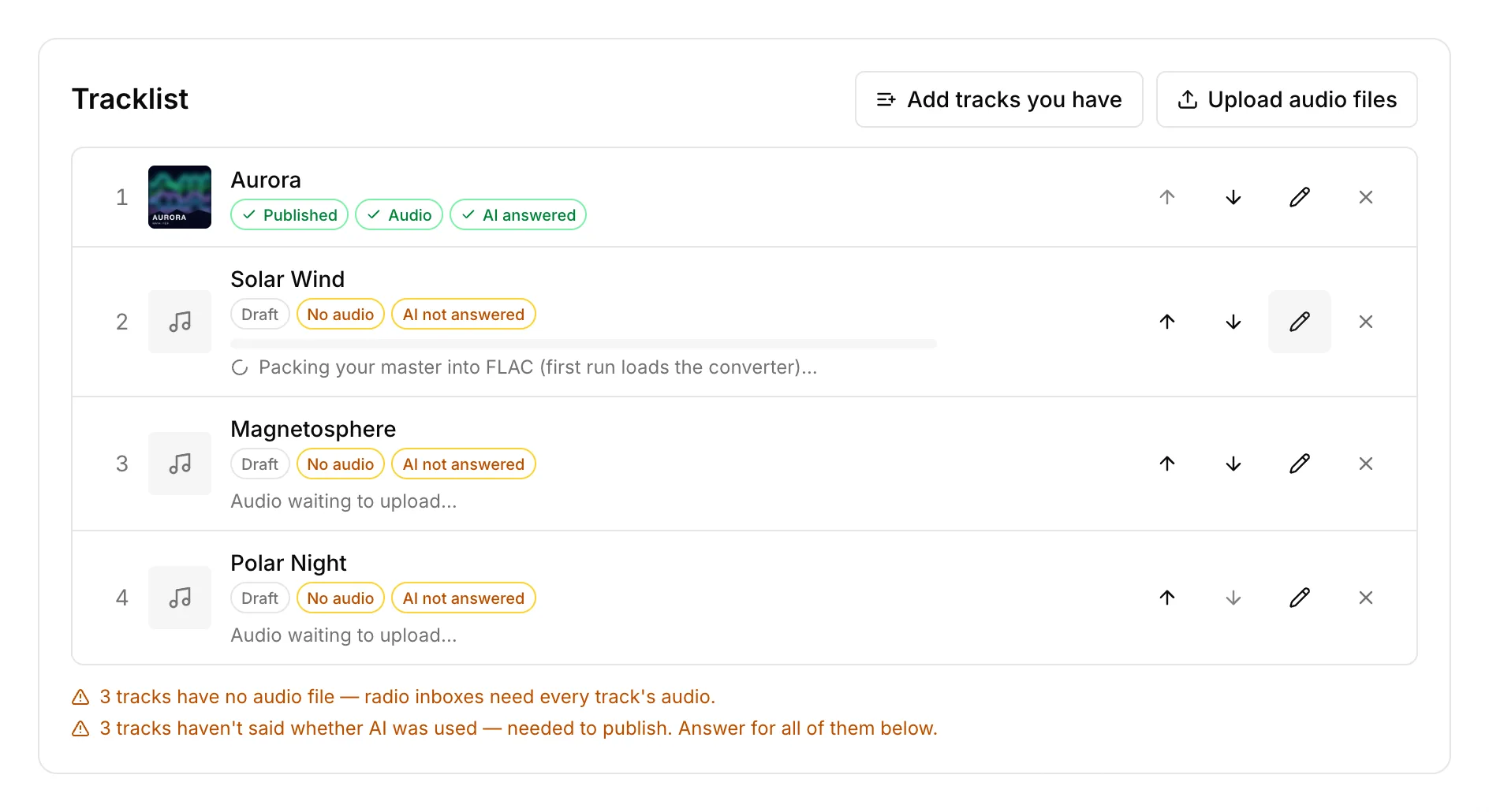
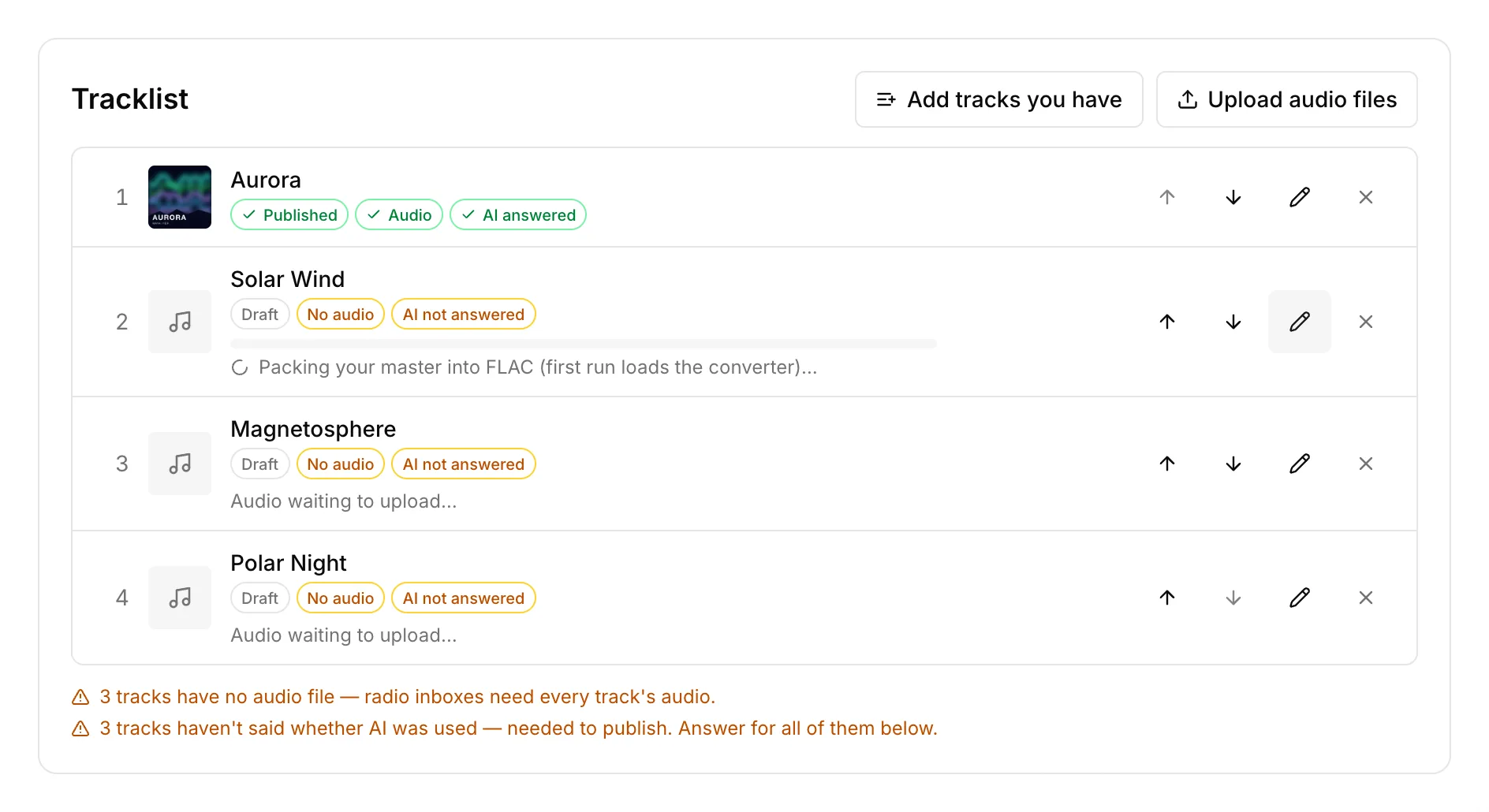
Check the order and what each song still needs
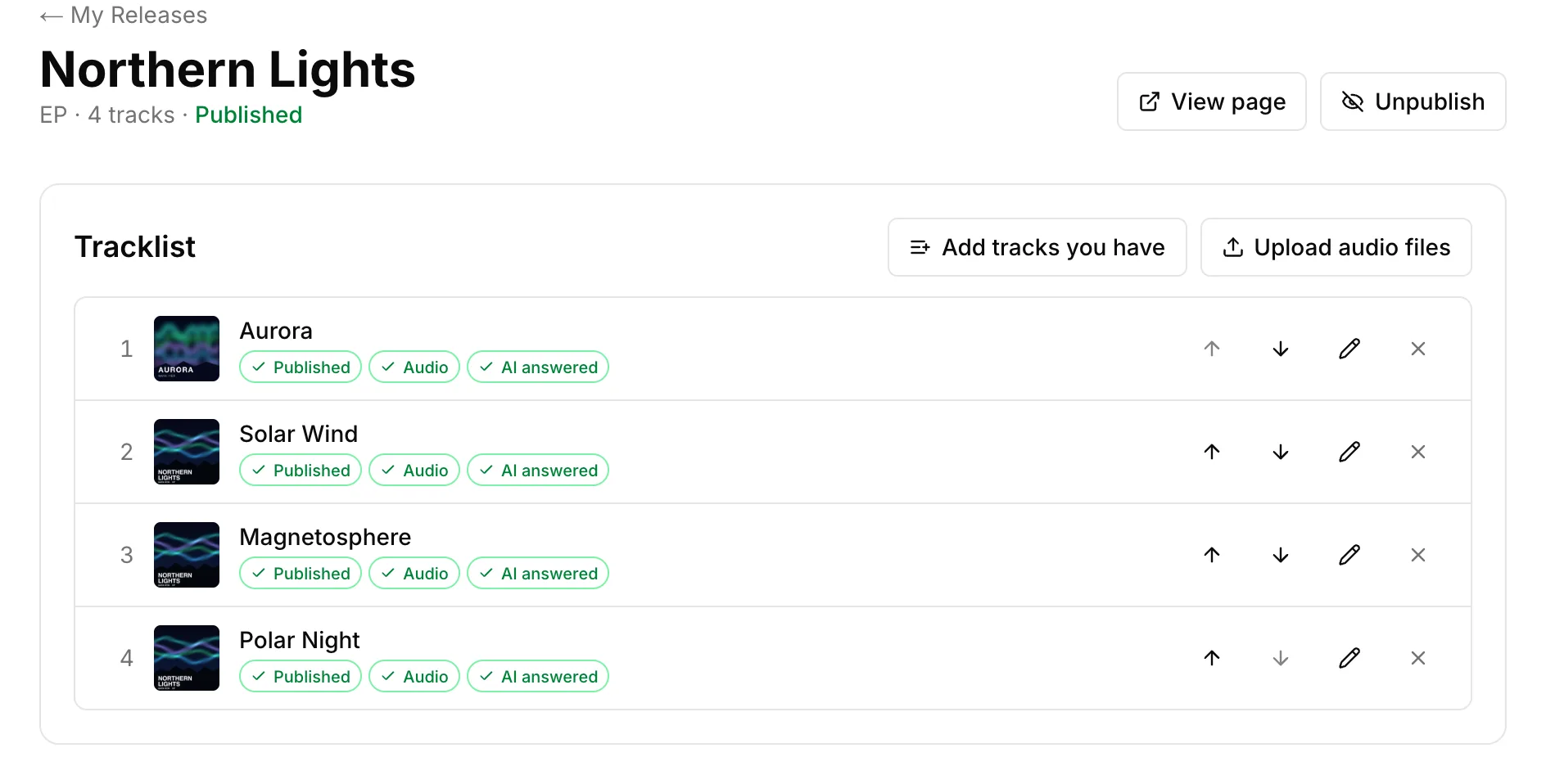
The arrows move a song up or down, the pencil opens its Track Page editor, and the cross takes it off the record (its Track Page stays). Each song shows Published or Draft, Audio or No audio, and whether the AI question is answered.
 (opens the full-size screenshot)
3. Fill in every track at once
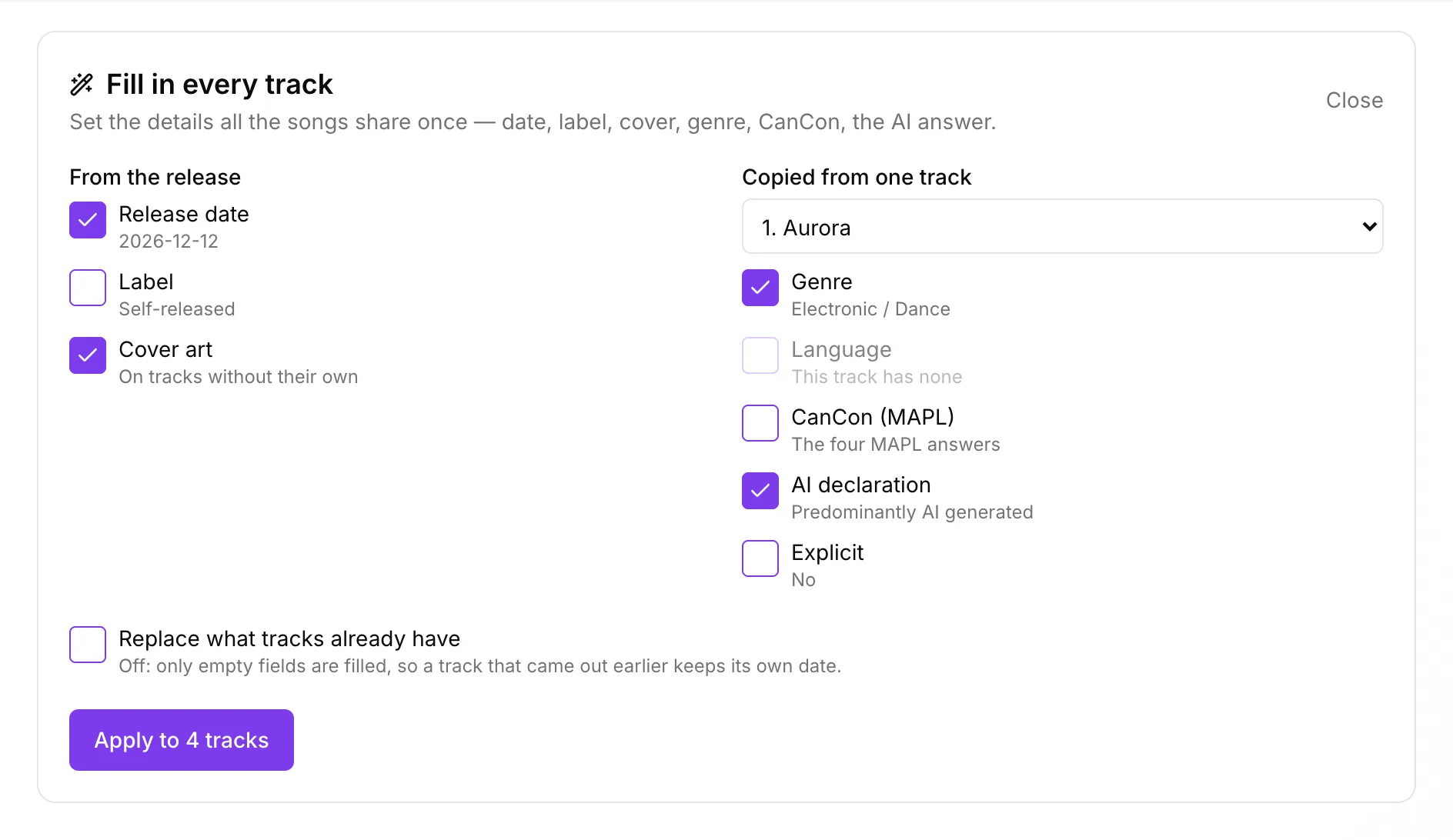
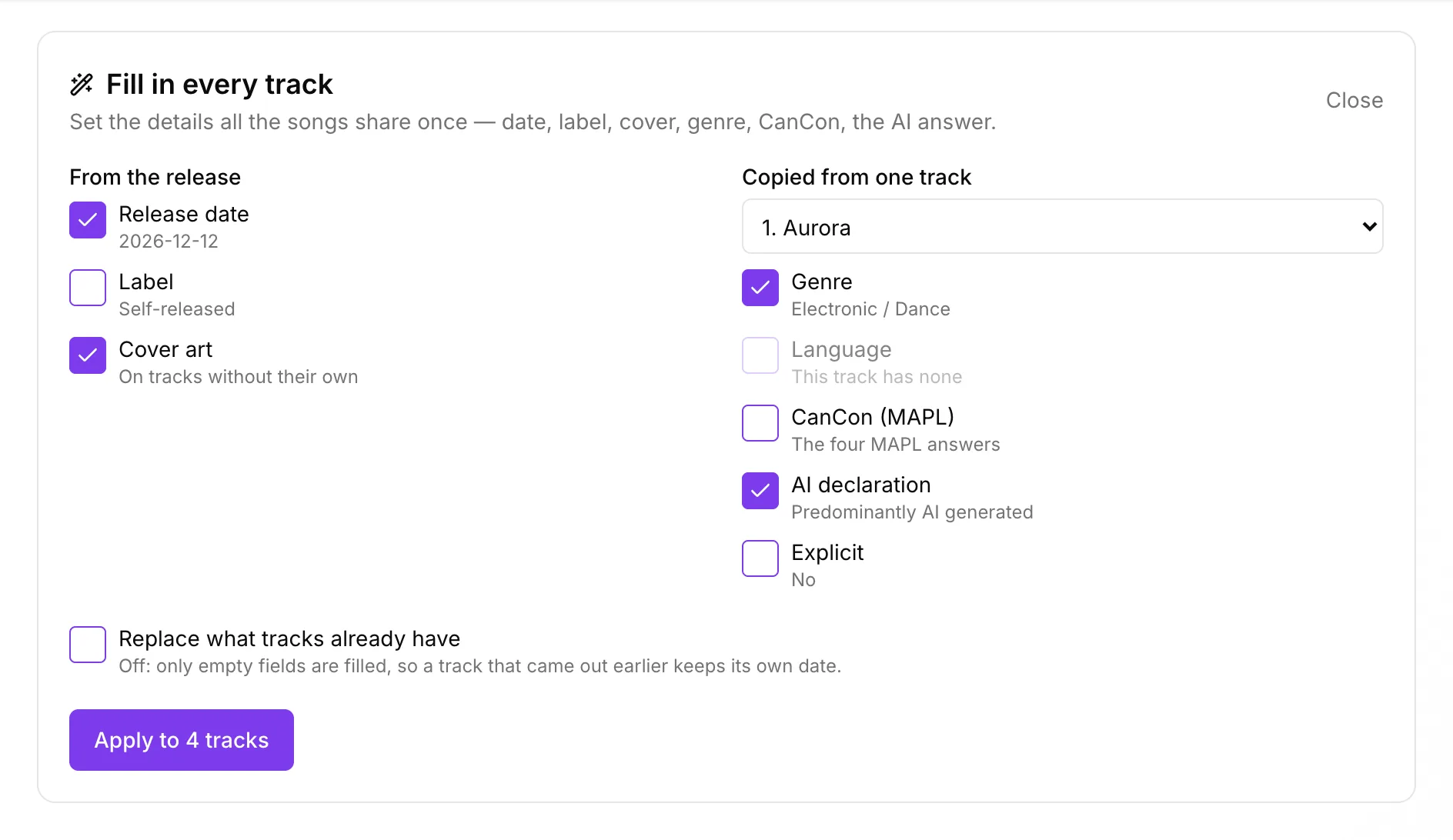
Open Fill in every track, tick what to copy, and click Apply
From the release: the Release date, Label and Cover art (for songs without their own). Copied from one track: pick a song, then its Genre, Language, CanCon (MAPL), AI declaration and Explicit answer.
 (opens the full-size screenshot)
4. Details, player and links
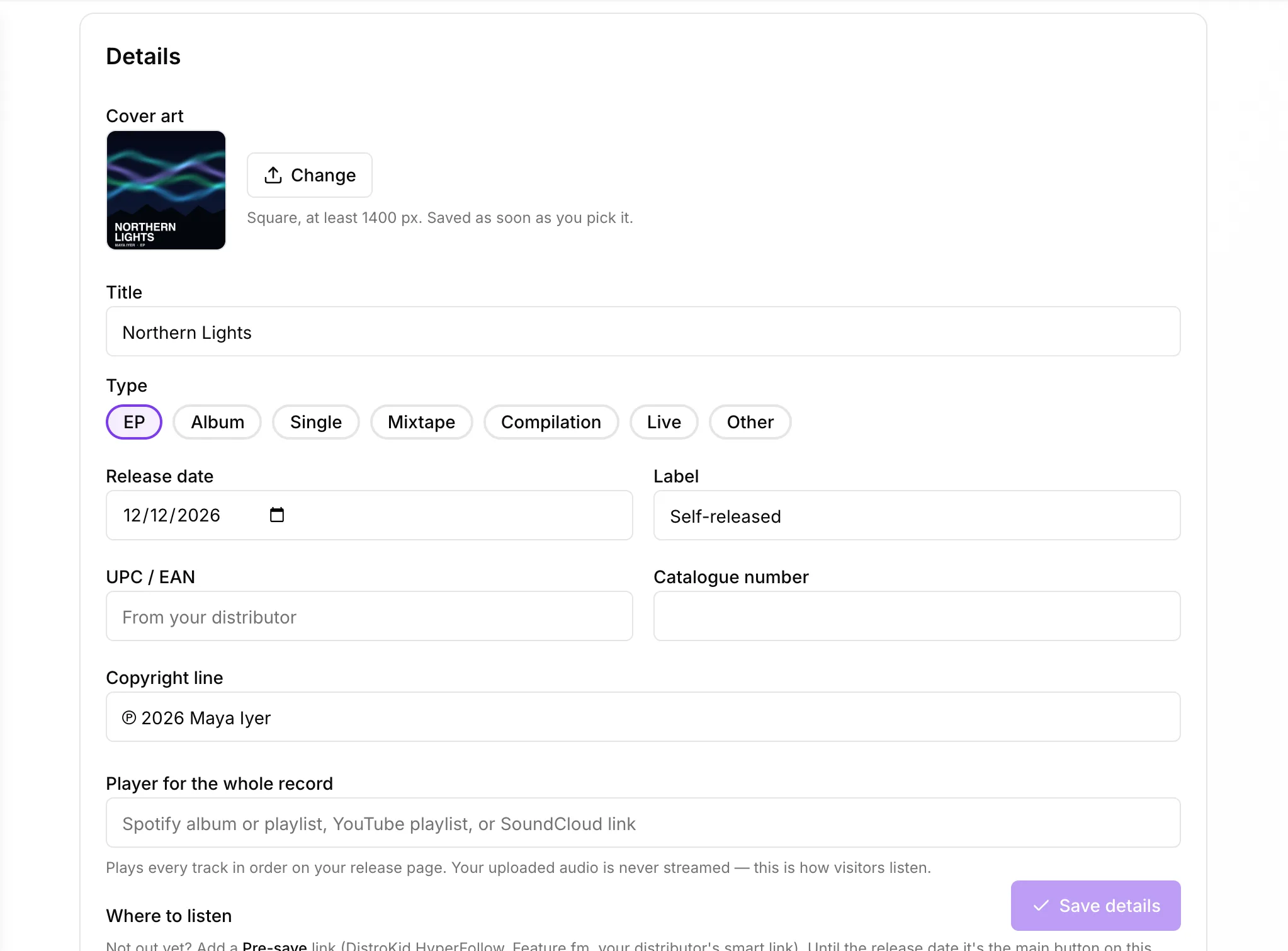
Under Details, add the Cover art and the facts
A square cover, at least 1400 px; it saves as soon as you pick it. Then the Release date, Label, UPC / EAN (from your distributor), Catalogue number and Copyright line.
 (opens the full-size screenshot)
Paste a link under Player for the whole record
A Spotify album or playlist, a YouTube playlist or a SoundCloud link. It plays the record on your release page. Your uploaded audio is never streamed to anyone.
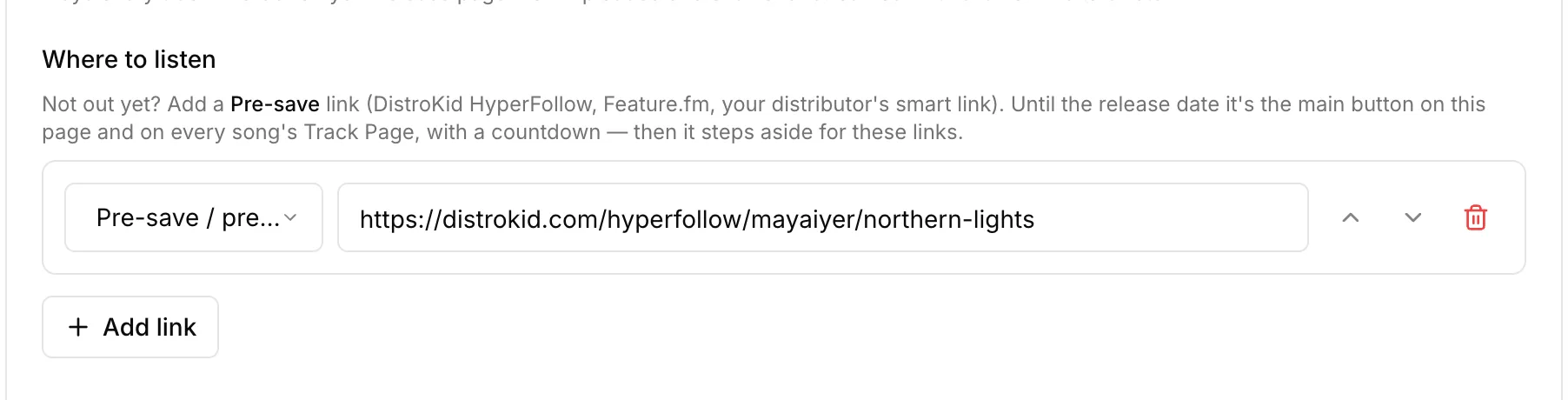
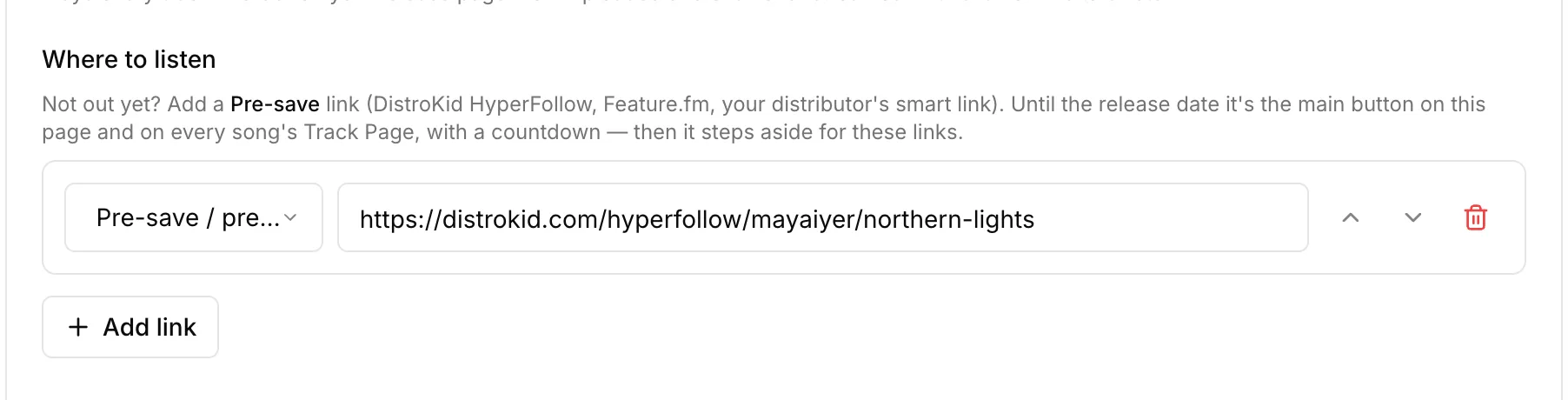
Under Where to listen, click Add link for each service
Not out yet? Pick Pre-save / pre-release and paste your DistroKid HyperFollow, Feature.fm or distributor smart link. Until the release date it's the main button on the release page and on every song's Track Page, with a countdown. After that it steps aside for your listen links.
 (opens the full-size screenshot)
Add About this EP, Credits, the Page address and a Banner, then click Save details
The banner is optional. Without one, the cover is blurred behind the title.
5. Publish and share
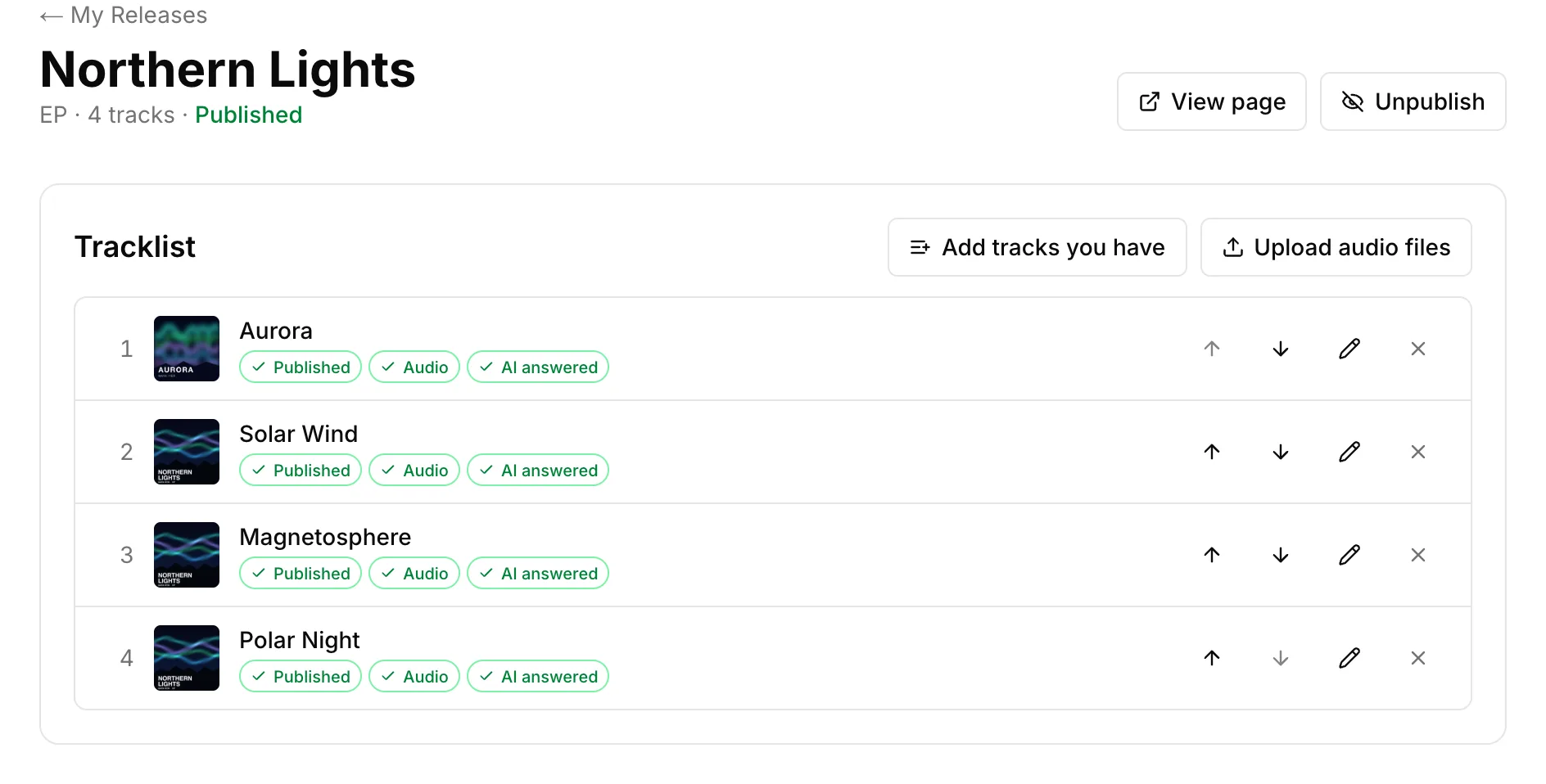
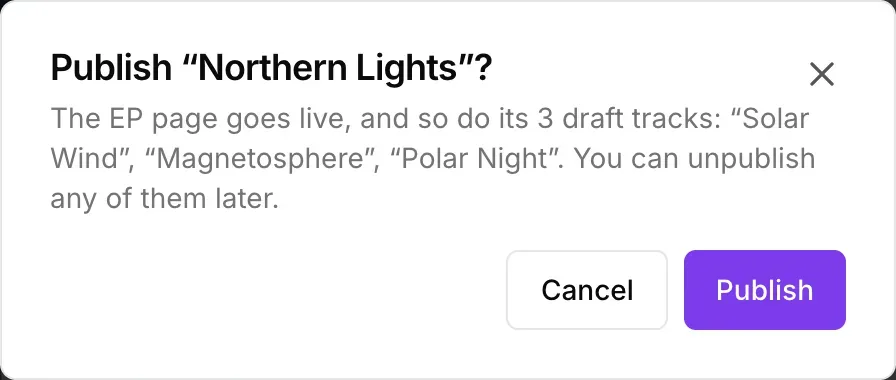
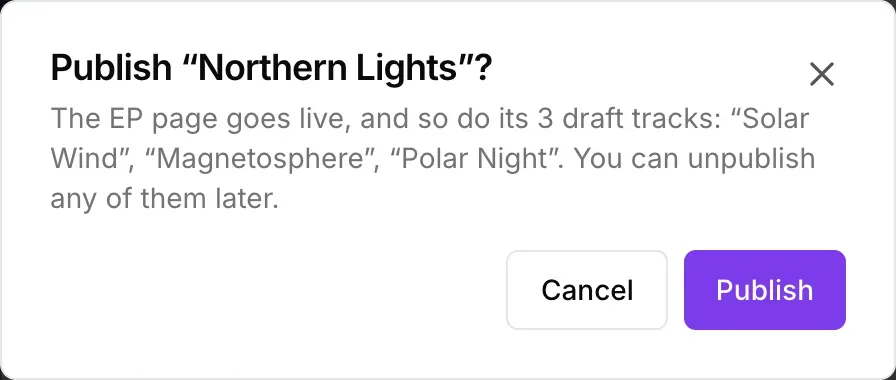
Click Publish EP (or Publish album)
Any songs that are still drafts go live with it. You can unpublish the record or any song later.
 (opens the full-size screenshot)
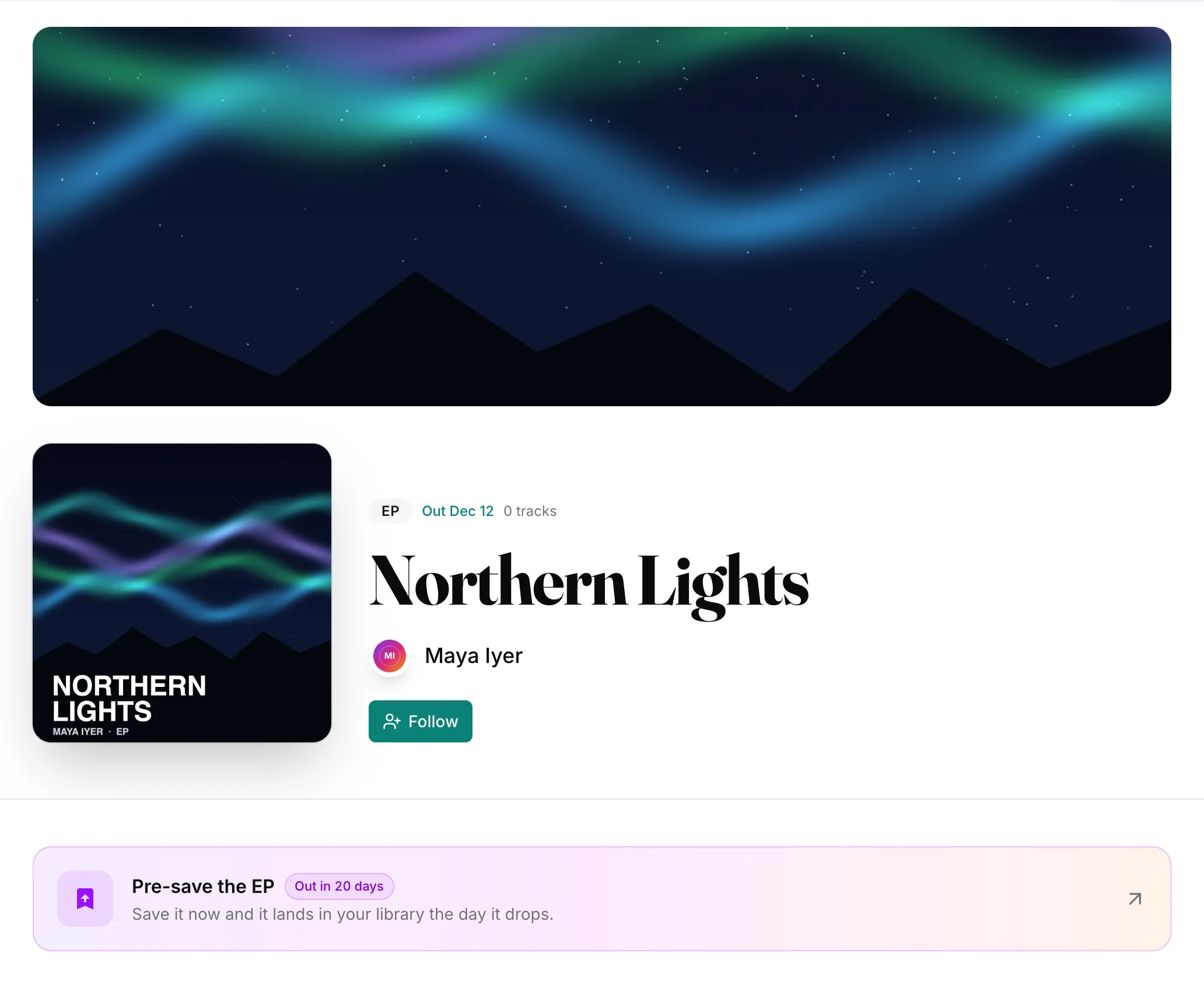
Open your release page and share it
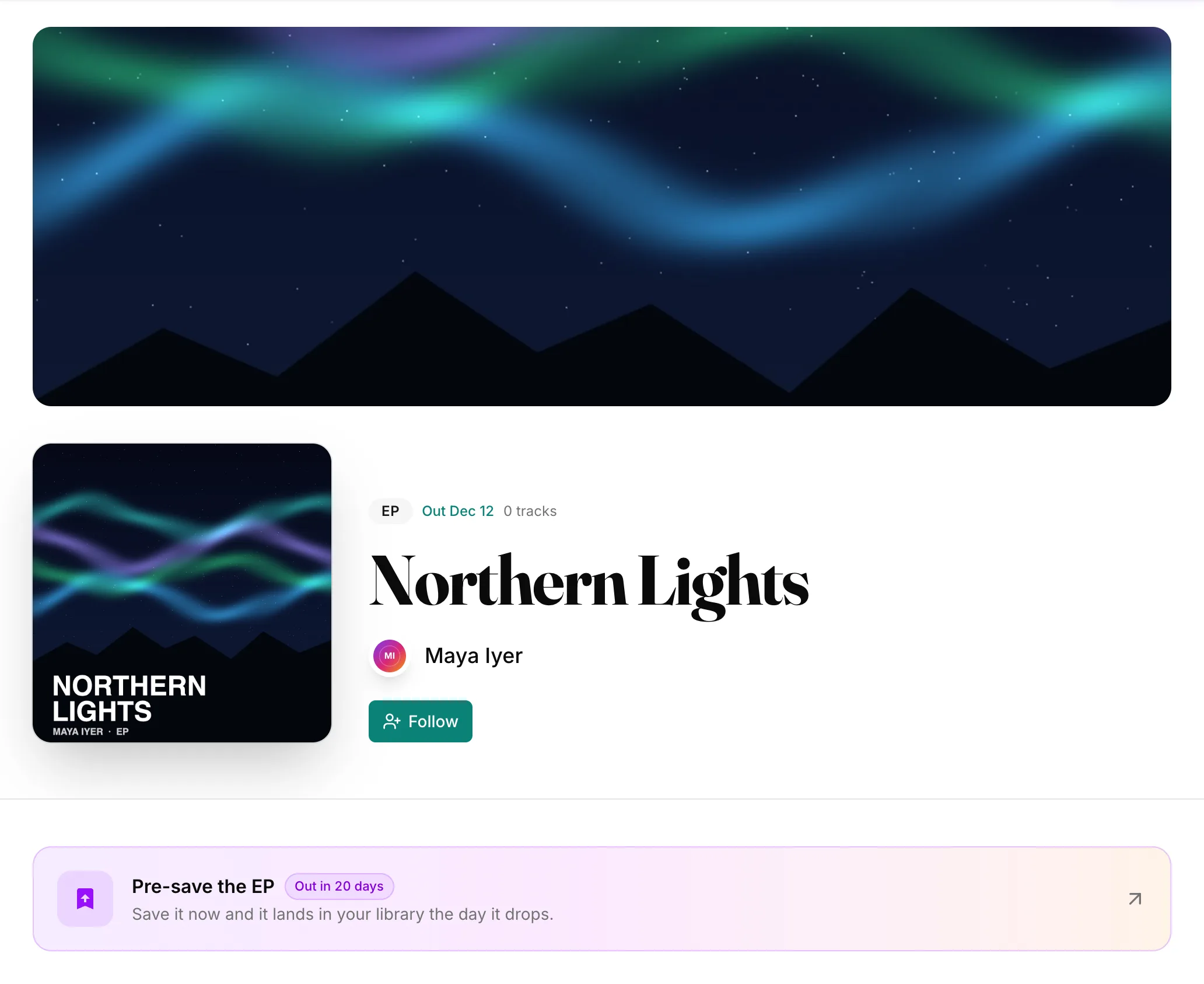
This is what everyone sees at artistlauncher.com/r/your-release. Before release day it says when it's out and leads with the pre-save countdown. Use Share, Copy link or the QR code, like a Track Page.
 (opens the full-size screenshot)
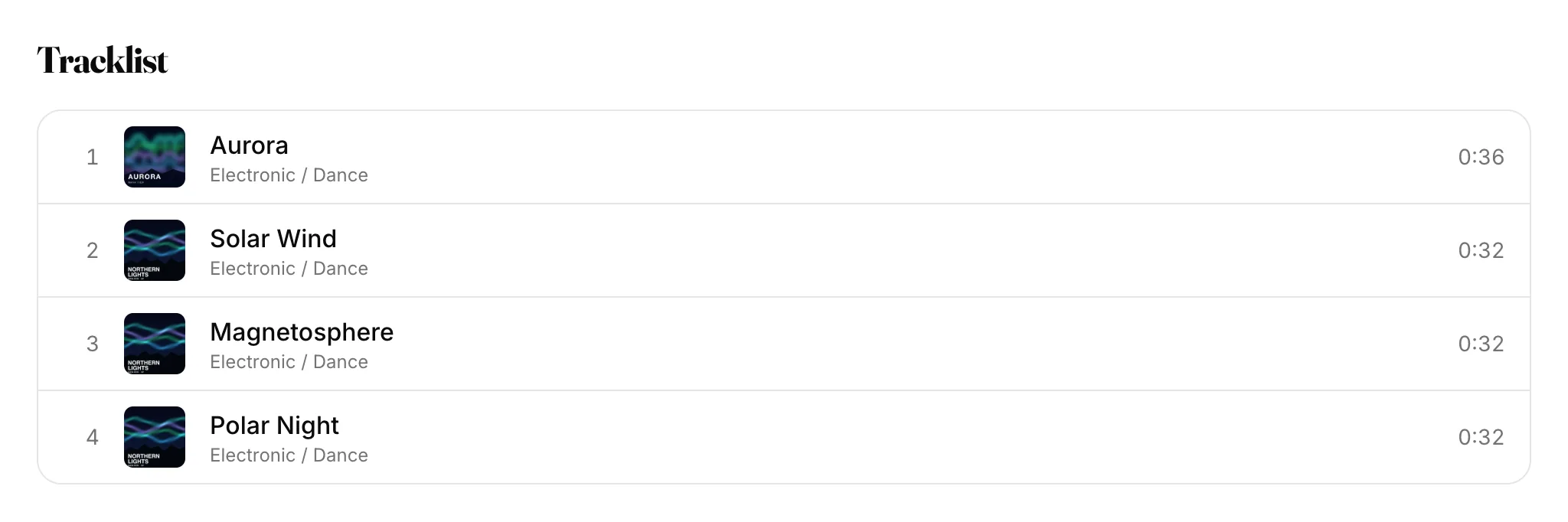
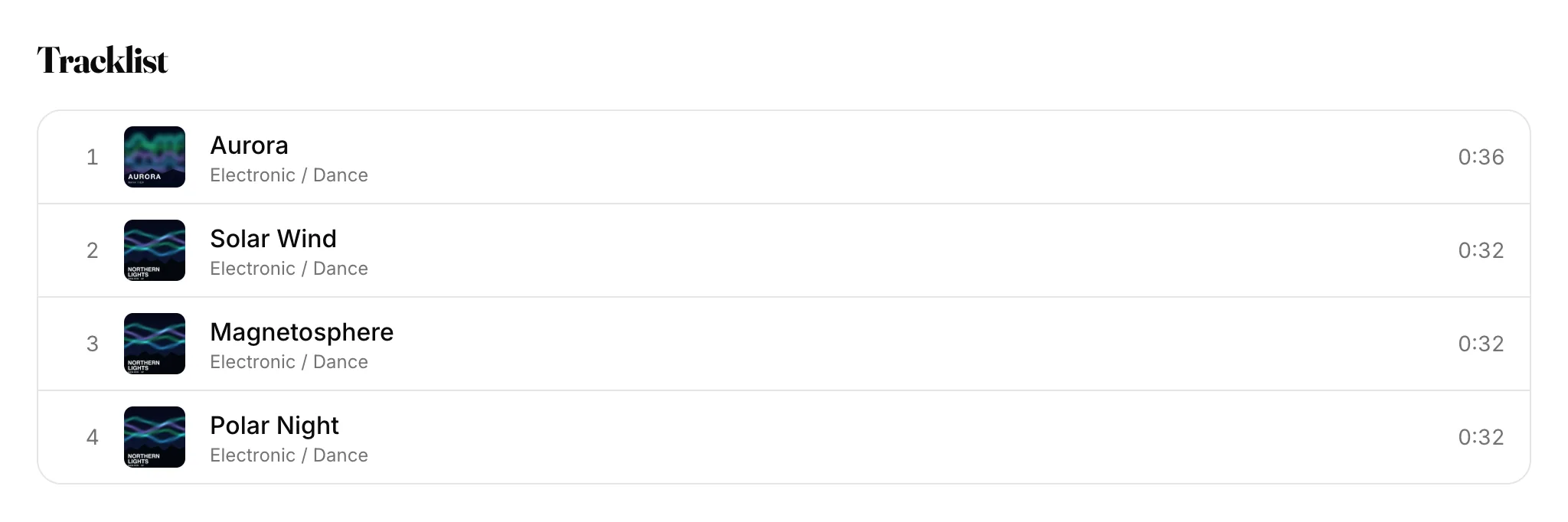
Each song links to its own Track Page
The tracklist shows each song's length, genre and CanCon.
 (opens the full-size screenshot)
Every song's page points back to the record
A song that has no pre-save of its own shows the EP's.
 (opens the full-size screenshot)
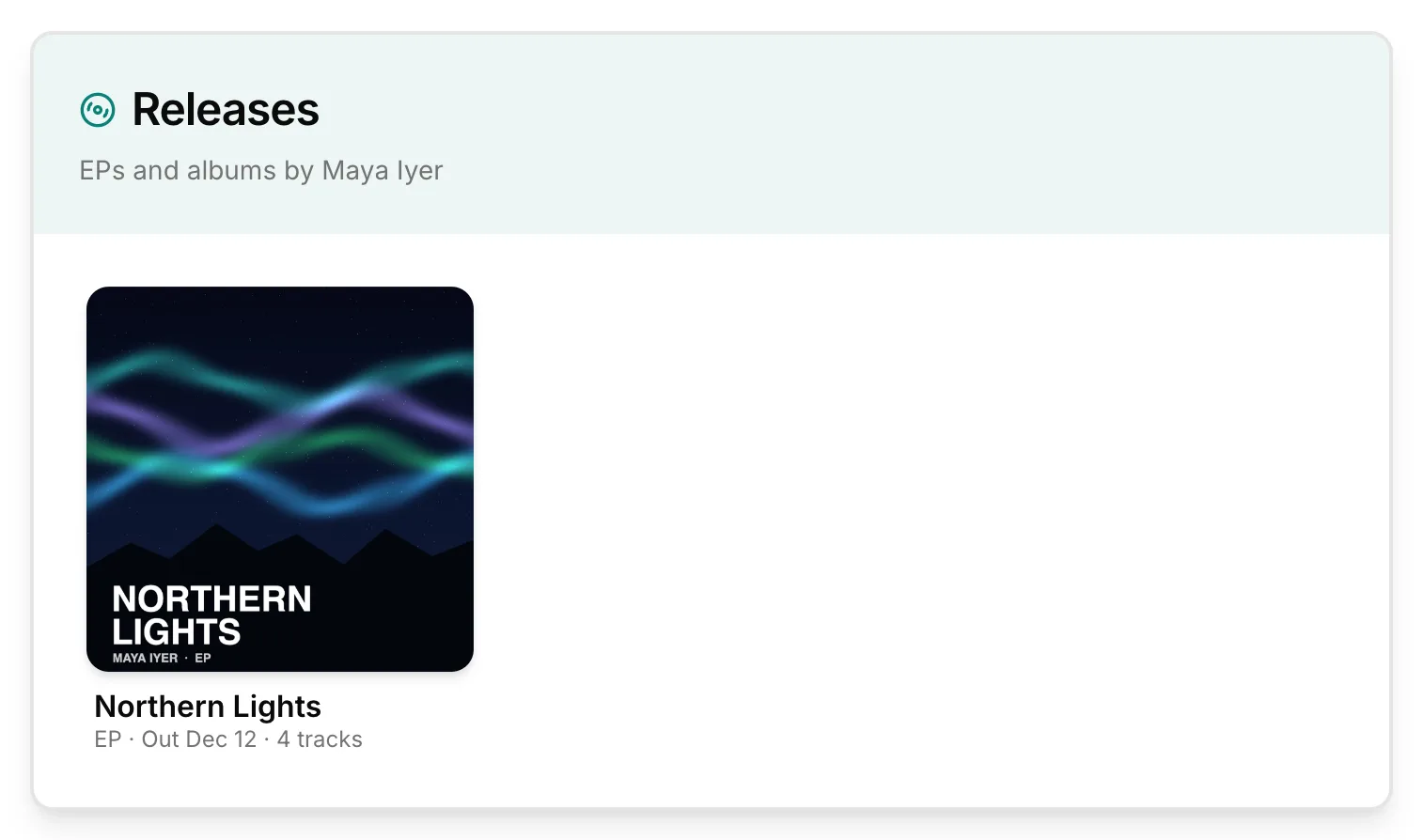
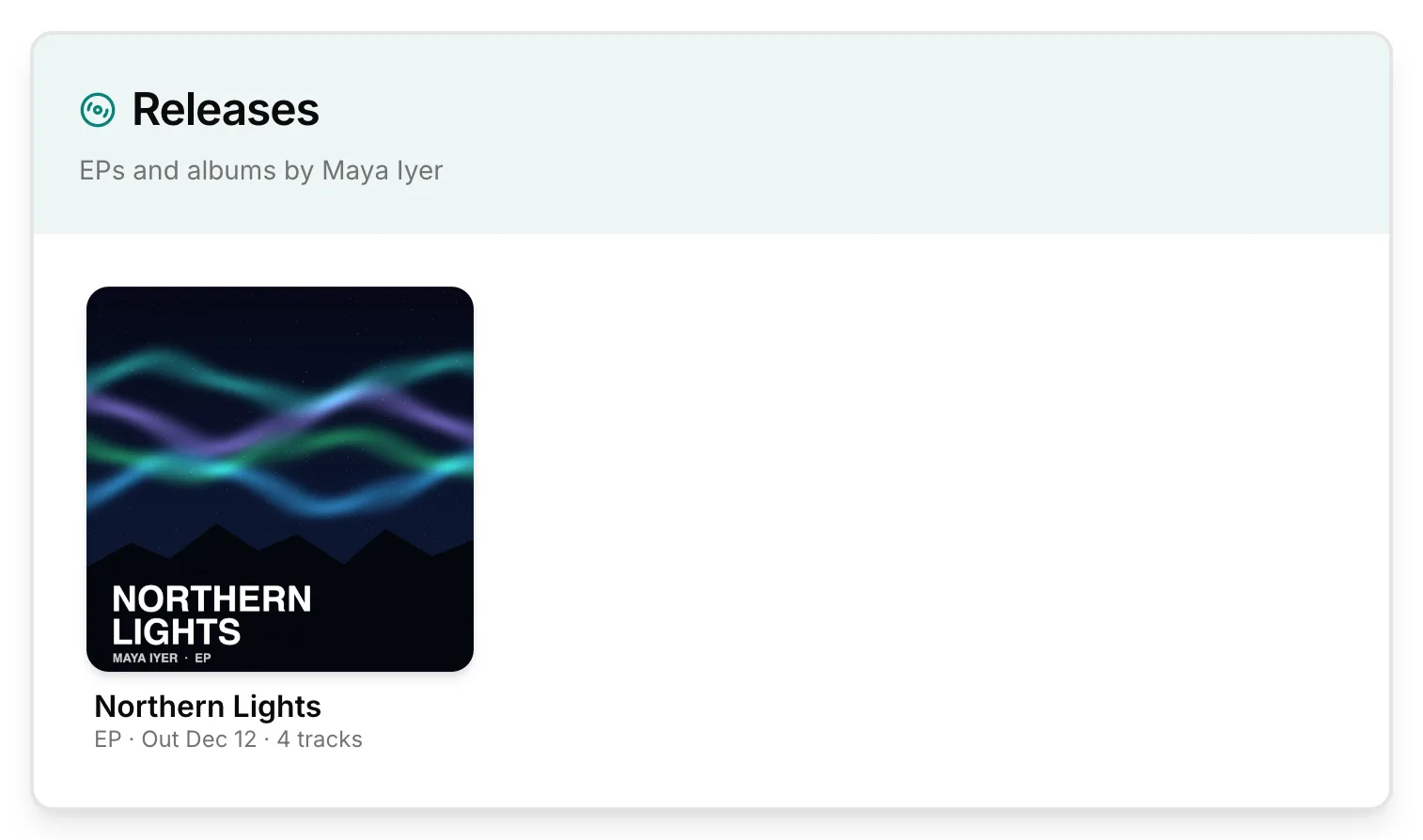
It shows on your profile, and on your Artist, Band or Label Page
Under Releases, newest first. Upcoming records read "Out Dec 12" until they land.
 (opens the full-size screenshot)
6. Download the whole record
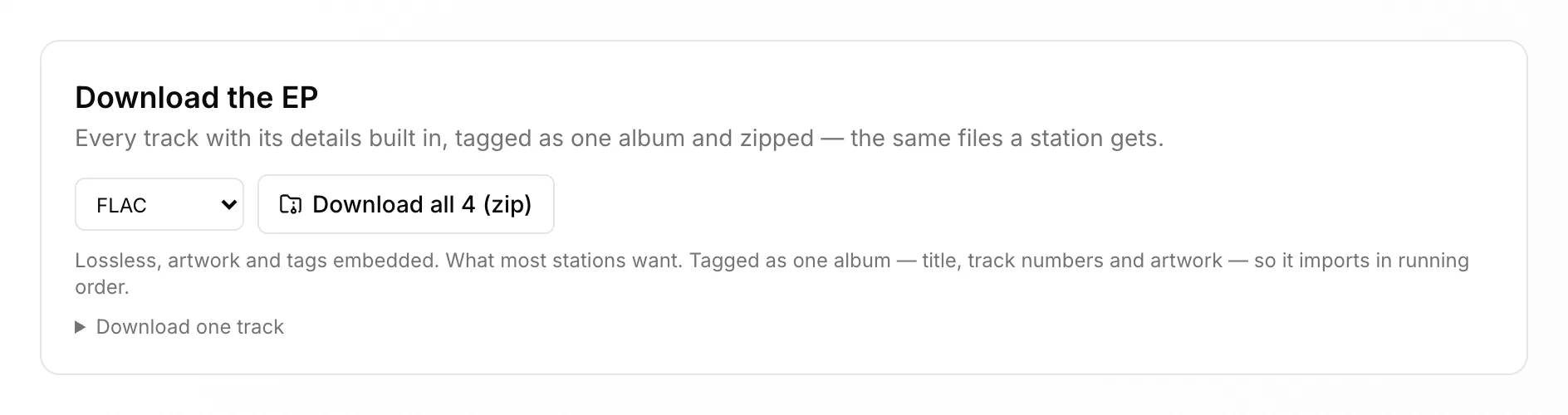
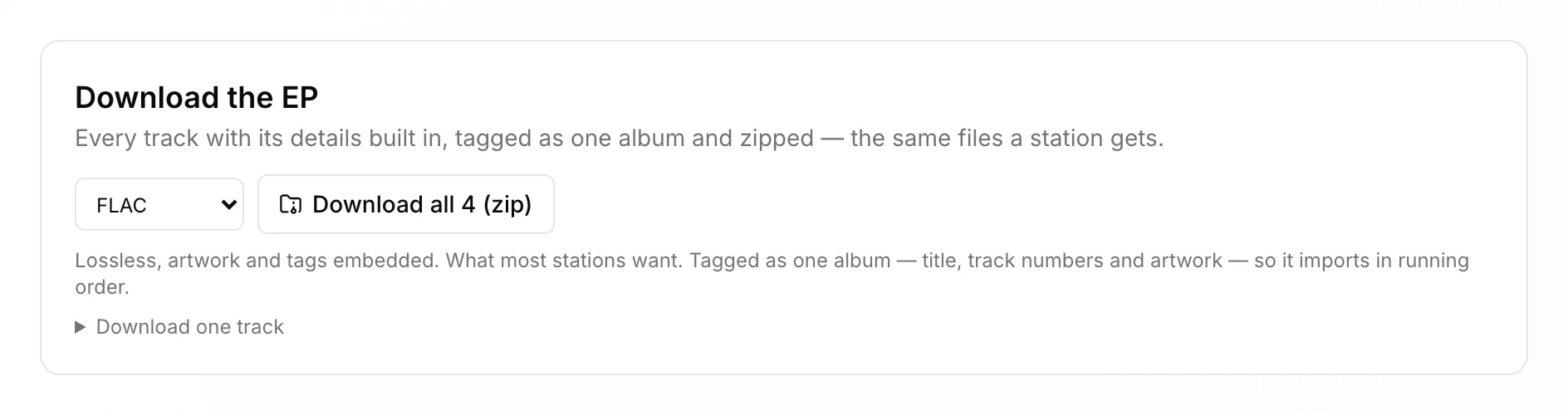
Under Download the EP, pick a format and click Download all
FLAC, WAV, MP3 or M4A / AAC, one zip with every song's details, artwork and track number written in, tagged as one album. Download one track gets a single song. It's the same zip a station gets.
 (opens the full-size screenshot)
7. Send it to stations, shows and blogs
On a Page, choose a submission button
Inboxes say what they take: Tracks and releases, Single tracks only or Full releases only.
Choose A release (EP, album…), then the record under Which release?
Tick up to 5 songs for them to start with (optional)
They're marked Start here for the station.
Add a Message, decide on the audio, and click Submit the EP
Radio inboxes always get the audio. Other inboxes get it if you tick Send them the audio.
- It's free, and it's one submission for the whole record.
- Something missing? The dialog says what (a draft record or song, or a song without audio) with Fix it in the editor.
- The station downloads every song you sent in one zip, and only those: songs added to the record later aren't part of what you gave them.
- Stations tick the songs they're adding to rotation and click Save rotation. You're told which ones.
8. Pitch it by email
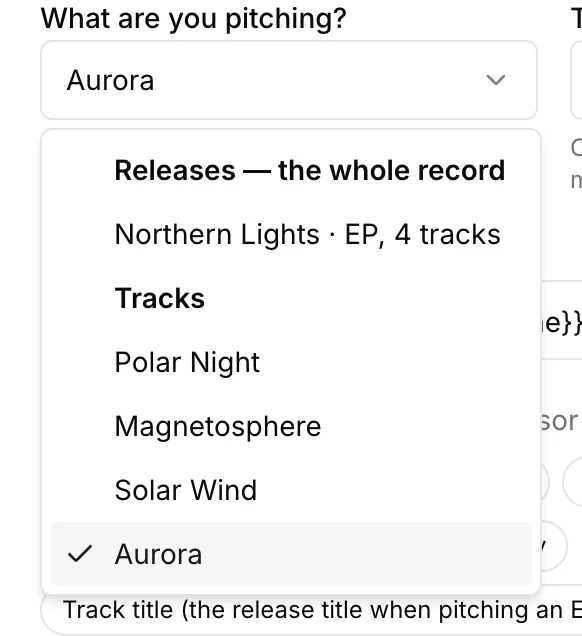
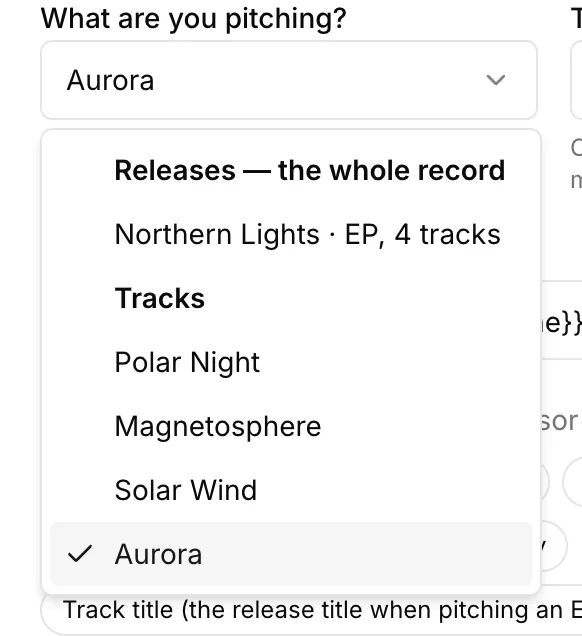
In a campaign, pick the record under What are you pitching?
Releases are listed first, under Releases — the whole record. Every email then links to the release page, and {{track_title}} reads as the record's title, so your templates work as they are. {{release_type}} fills in "EP", "album" or "single".
 (opens the full-size screenshot)
- The genre check, and "already pitched", use one song from the record: the one you had picked if it's on it, otherwise track 1.
- Opens and listen clicks on the release page count in the campaign's results.
9. Sell it in your store
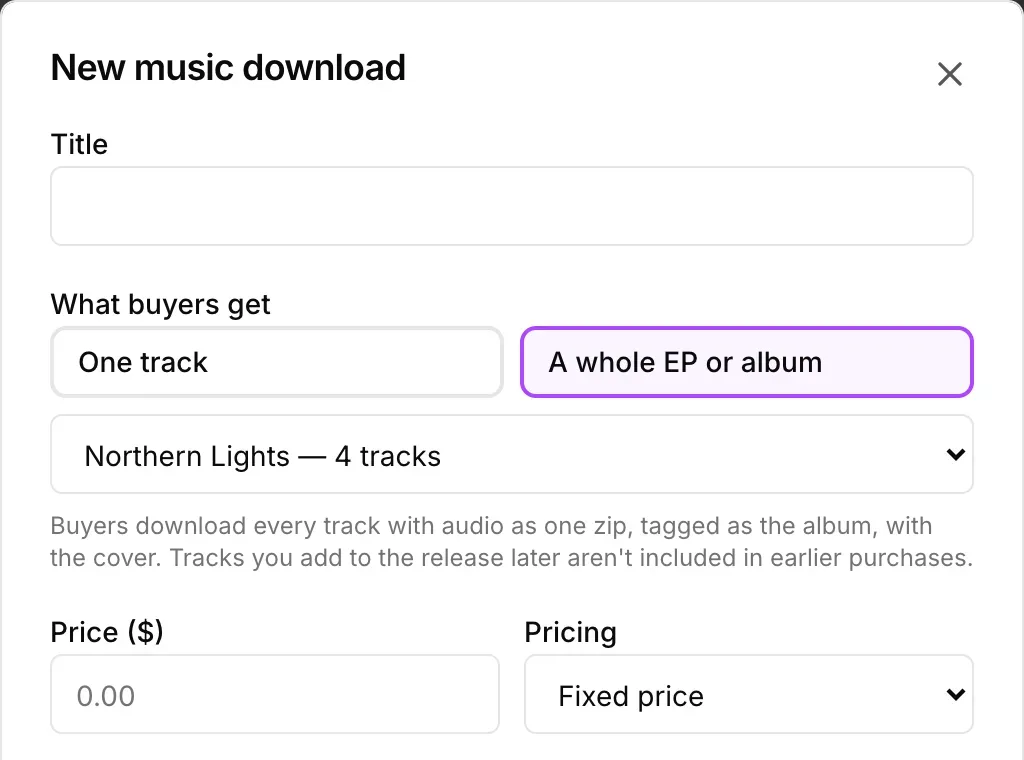
In your Page editor, go to Store and click Music download
Under What buyers get, choose A whole EP or album, pick the record, then set the Price and Pricing (fixed or pay what you want).
 (opens the full-size screenshot)
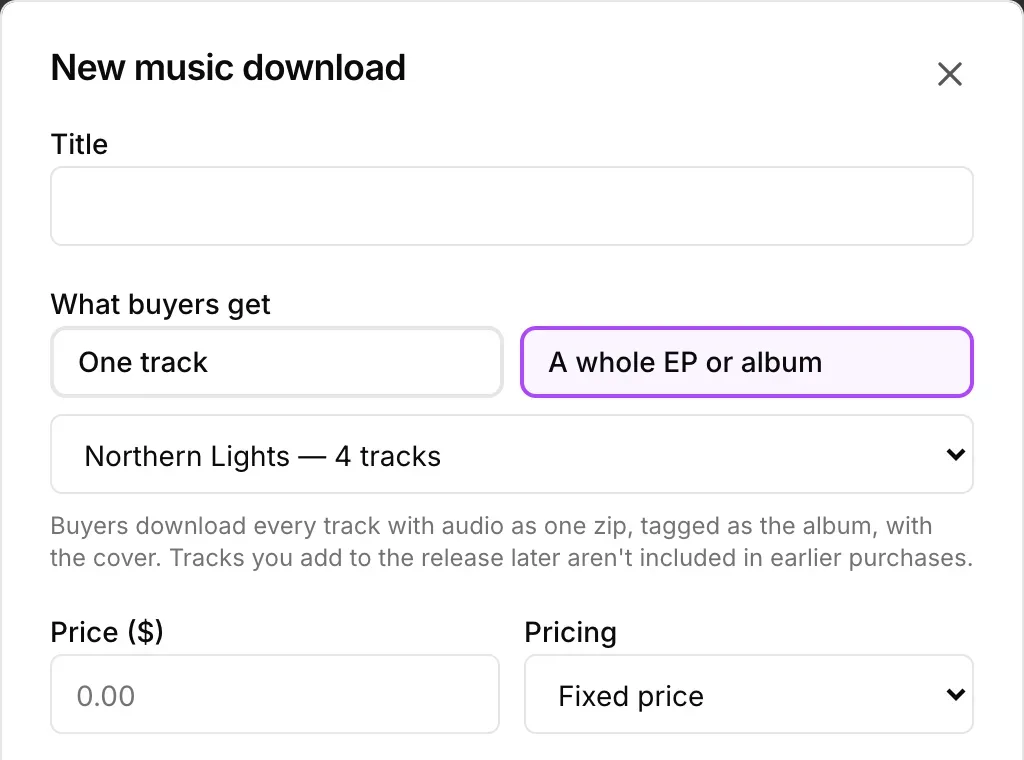
- Buyers download every song that has audio as one zip, tagged as the album, from Purchases.
- A purchase covers the songs on the record when it was bought. Songs you add later aren't included in earlier purchases.
- A 15% platform fee applies to each sale, as with any store product.